On-screen Notifications
This page explains how IAM uses on-screen messages to tell you whether an action succeeded, failed, or needs attention.
-
Success and error notifications appear after key actions (for example - save, delete, join/leave group, permission changes, send reset email).
-
After you save, update, or delete, IAM shows a short toast message near the bottom of the screen (for example: “Permission added”, “Group “XYZ” was updated”, “Client updated”, “Password reset email sent”).
-
Success messages confirm that the action is completed. You can continue working once the message appears.
Success
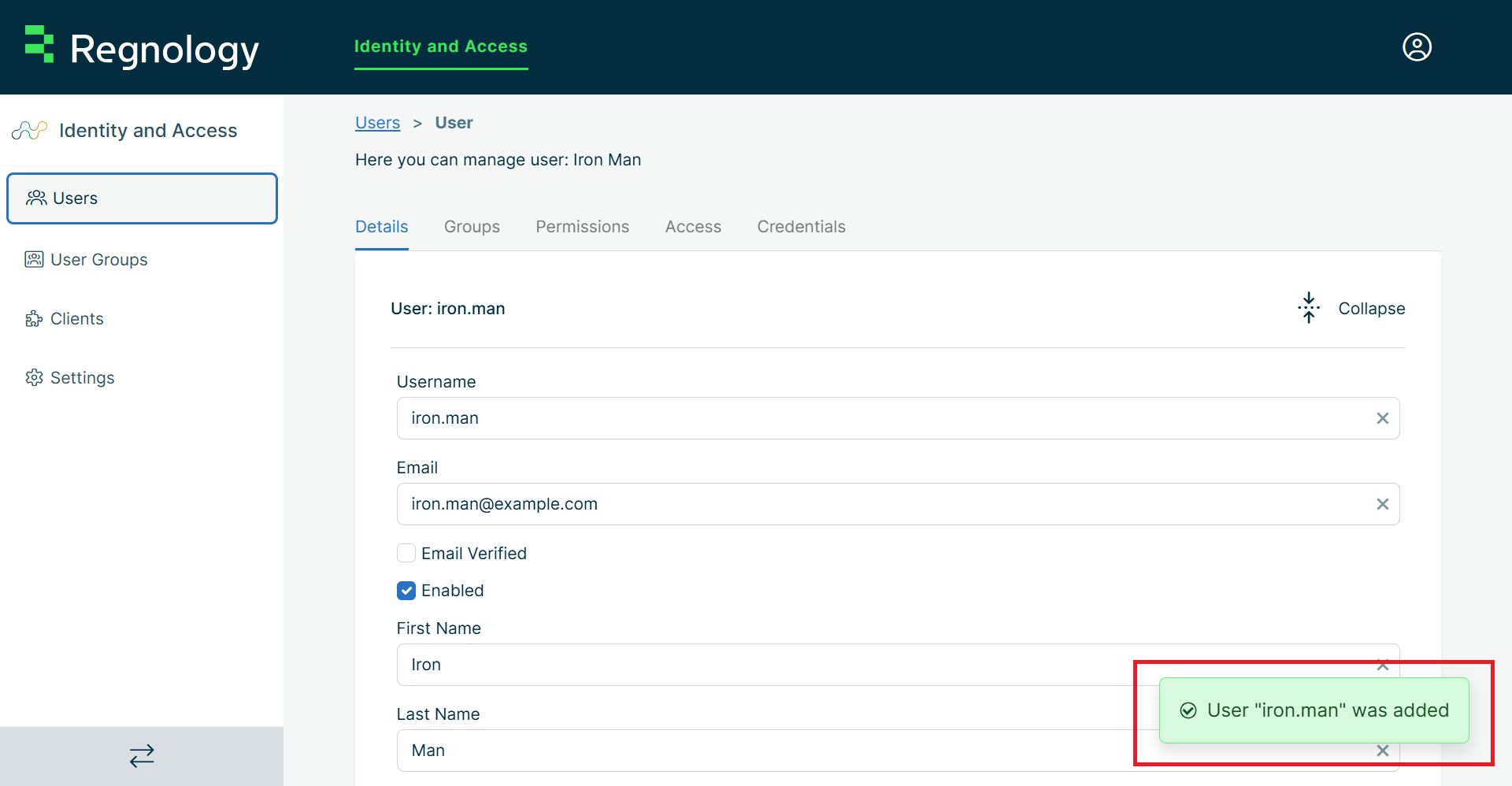
Figure 1. Success
-
Validation / error messages appear when a form is incomplete or invalid (for example: “Please fix validation errors before saving., or field hints such as ‘This field is required’”). Correct the form and try again.
Validation
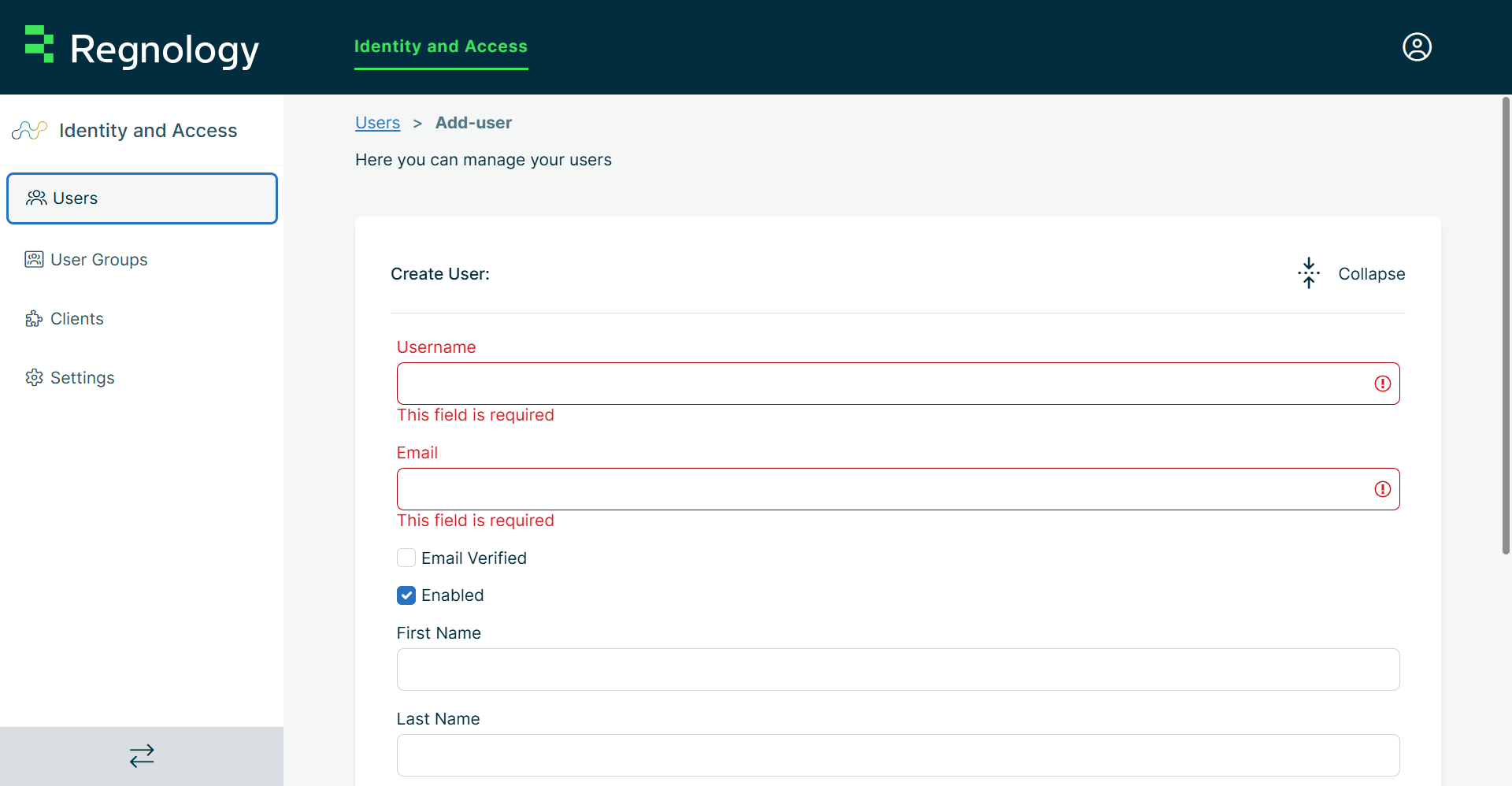
Figure 2. Validation
-
Some actions show an attention message: the main action succeeded, but something needs follow-up (for example: “Permission added, but some mirrored permissions need attention when target modules are not registered”).
Warning
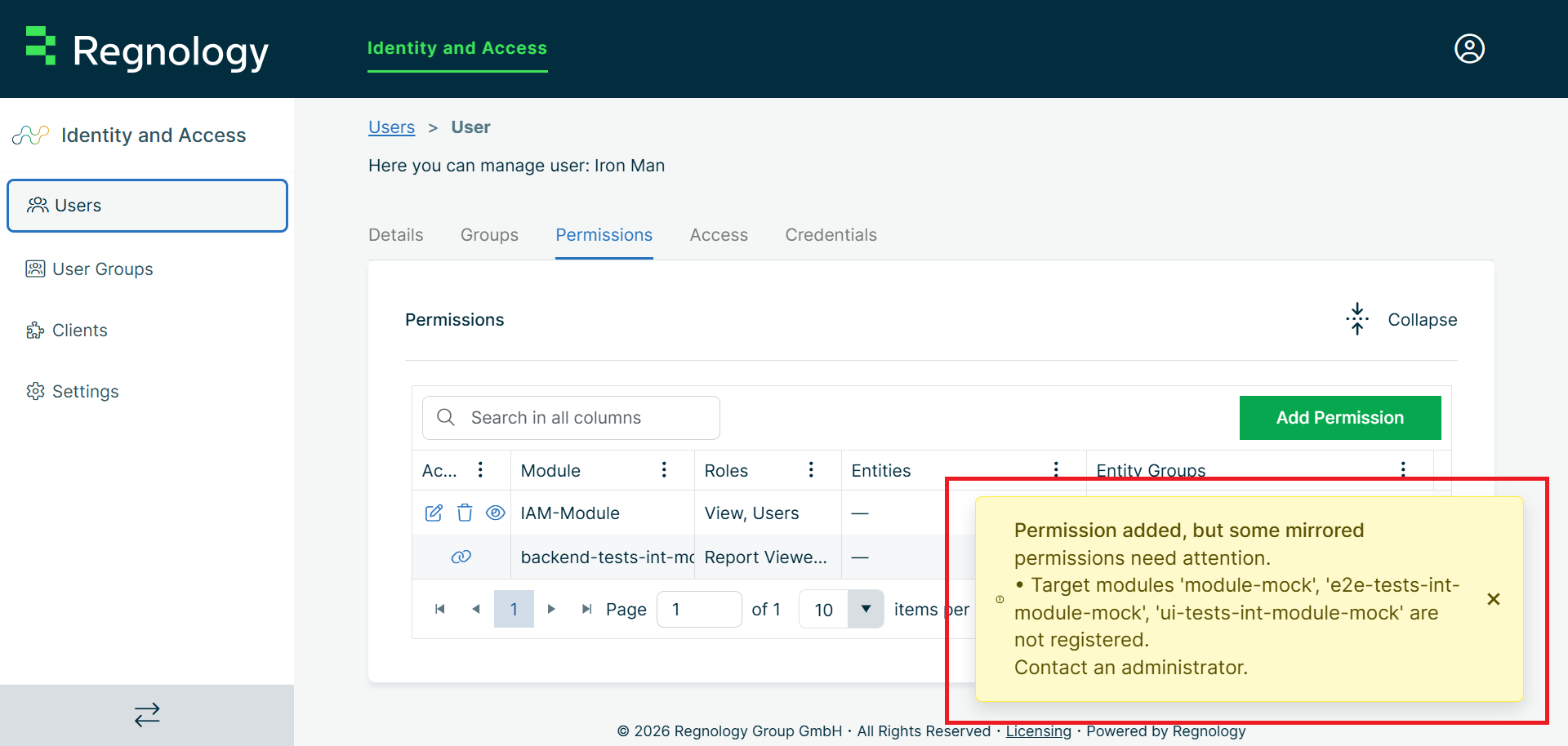
Figure 3. Warning
-
You can dismiss a toast (close icon) so it does not cover the page. Toasts may also disappear on their own after a few seconds.
-
If the Save button is disabled (greyed out), this is the feedback that one or more required fields are still empty or invalid. Complete those fields until Save becomes clickable. This is form validation on the page, not a toast message.
Failure
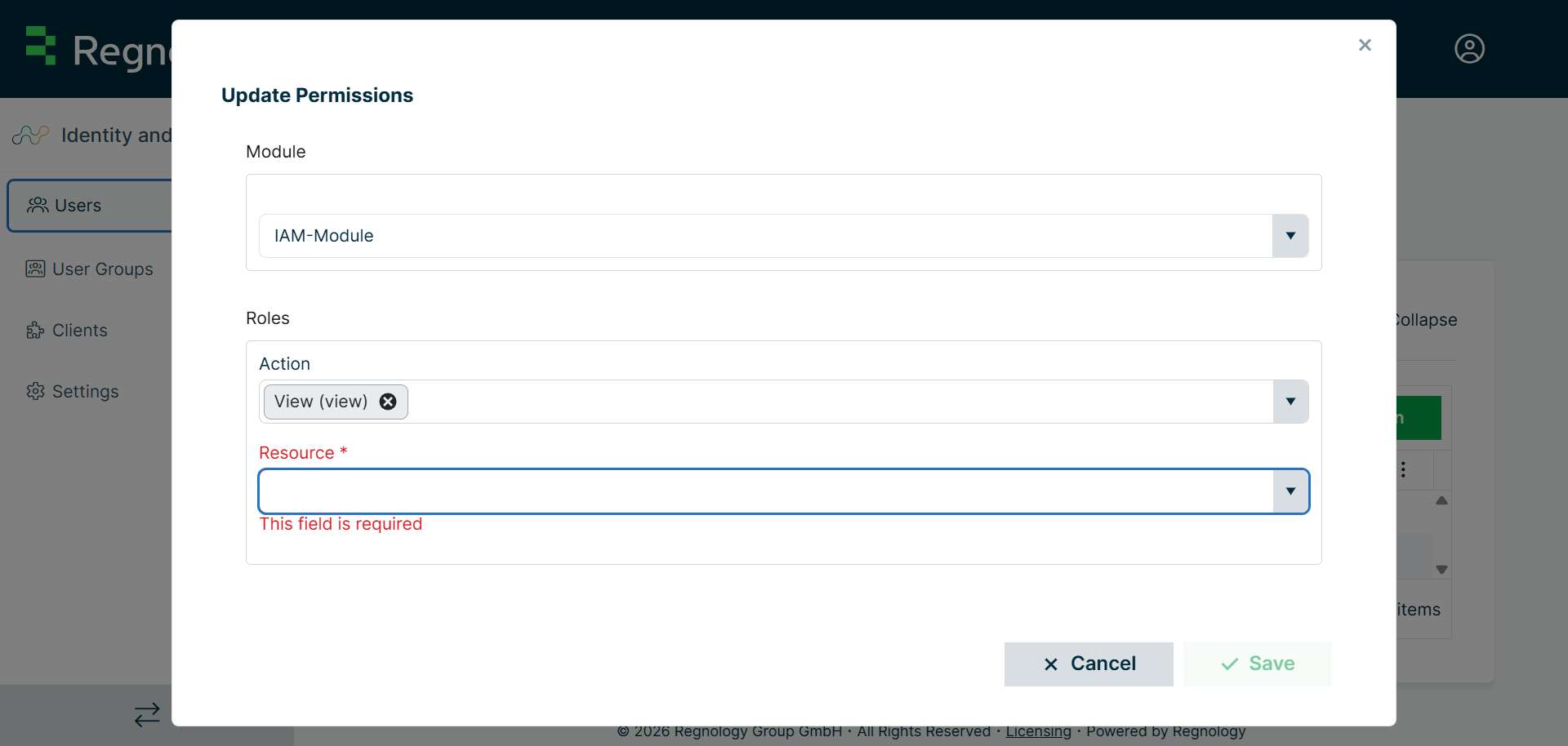
Figure 4. Failure
-
Message text usually names the affected item (user, group, client, or module) so you can confirm you changed the right record.