Update user
This page explains how to update an existing user.
Update User
-
In the User list, find the user you want to update (use Search bar if needed).
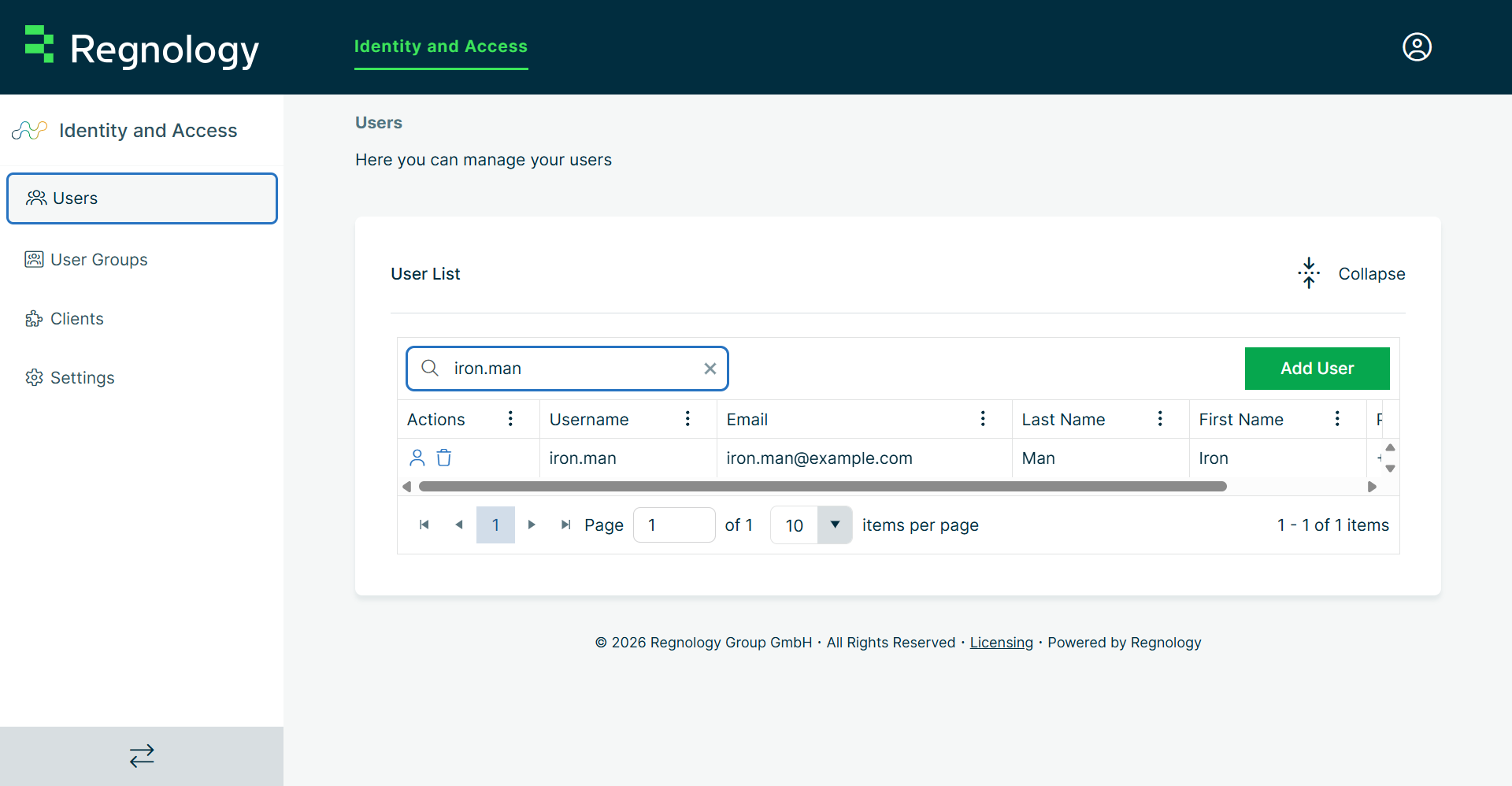
Figure 22. User List showing iron.man
-
In the Actions column for that user, click the User Details icon (i.e. user icon adjacent to the delete icon). Do not click the Delete (trash) icon.
NoteIn the IAM UI, this control is titled “User Details” and opens the user for editing.
-
The user Details screen opens.
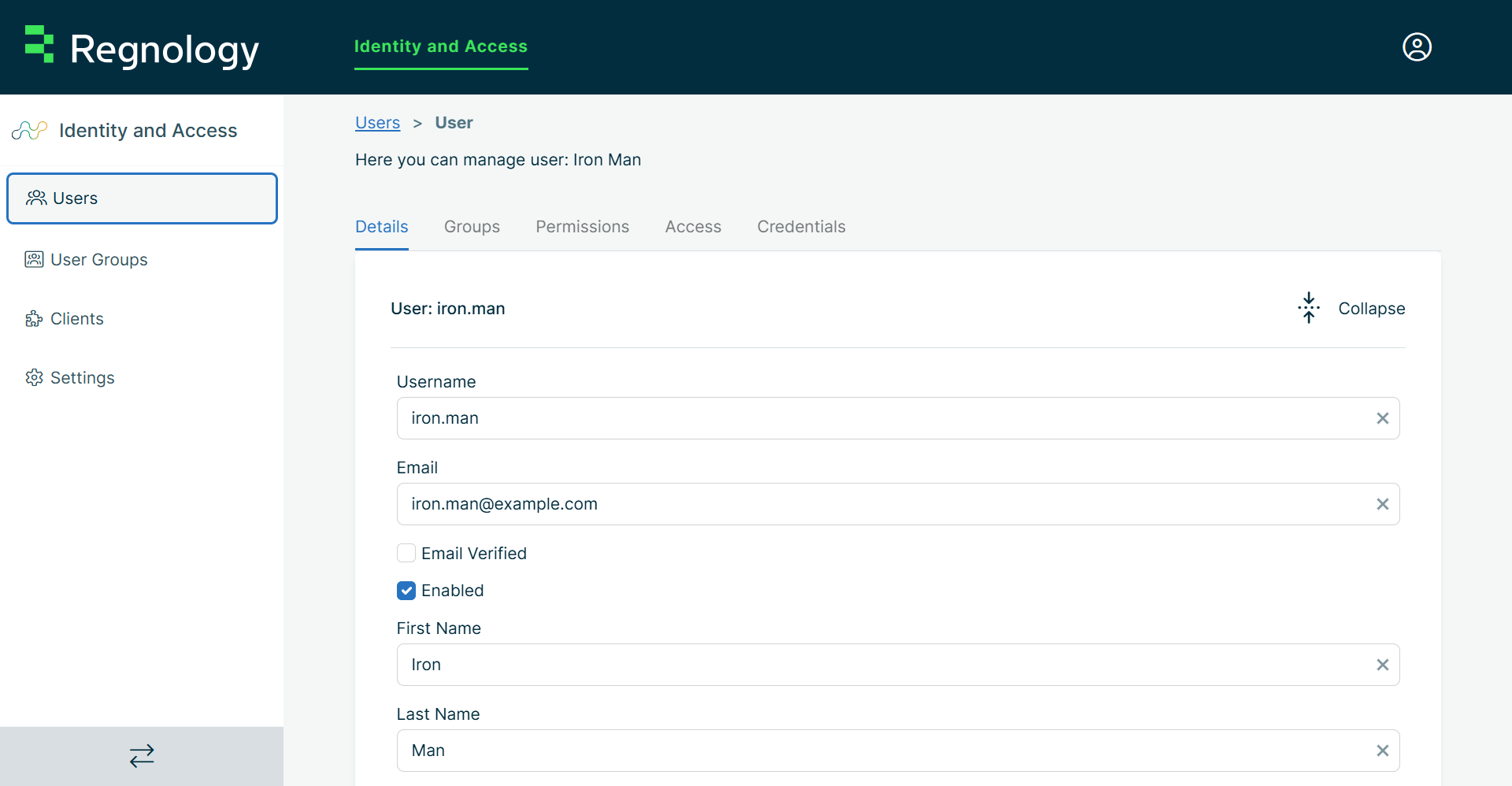
Figure 23. User Details before update
-
Stay on the Details tab.
-
Update Last Name (example: Stark).
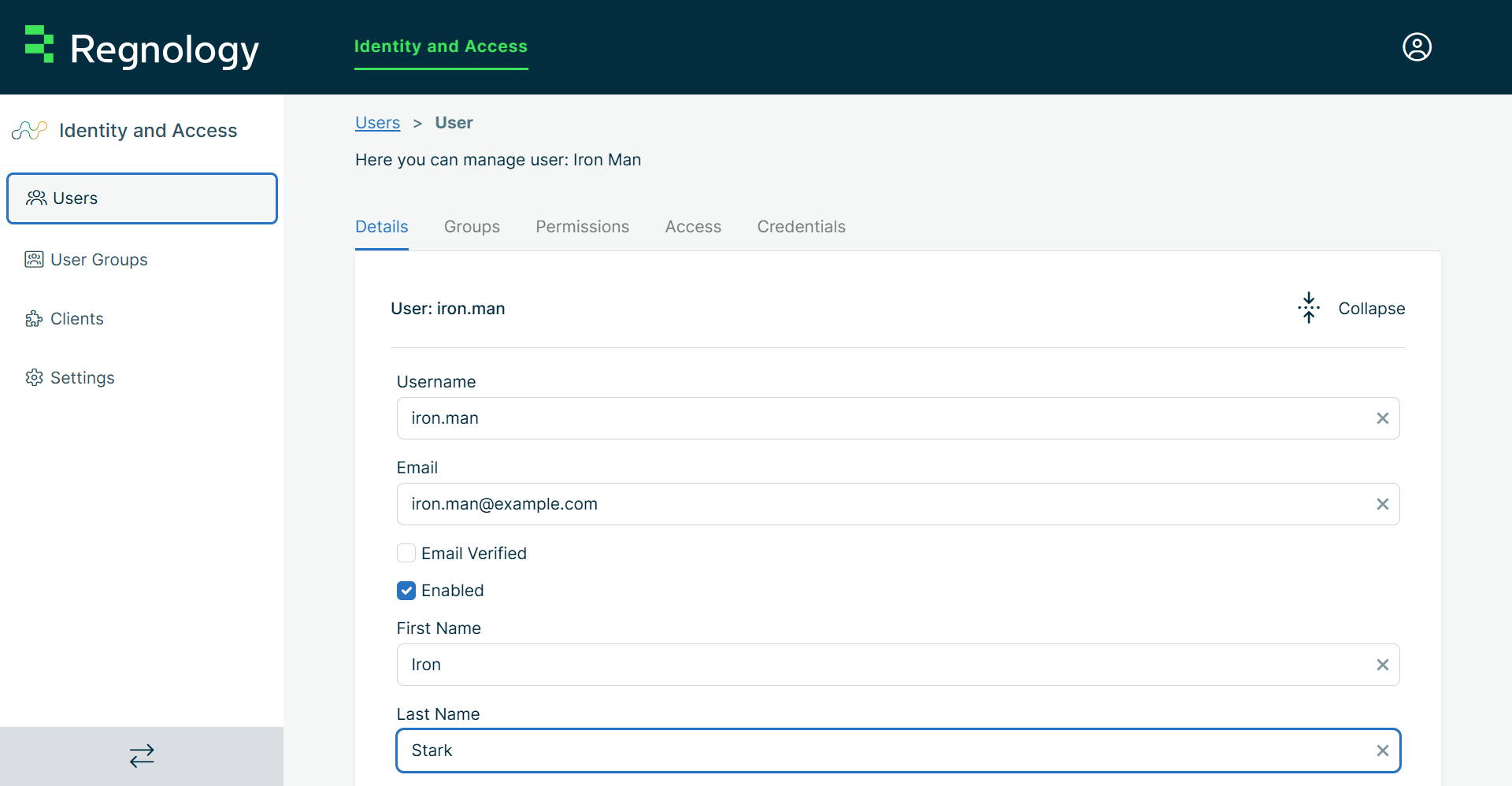
Figure 24. Last Name updated
-
Update Phone Number (example: +491709876543).
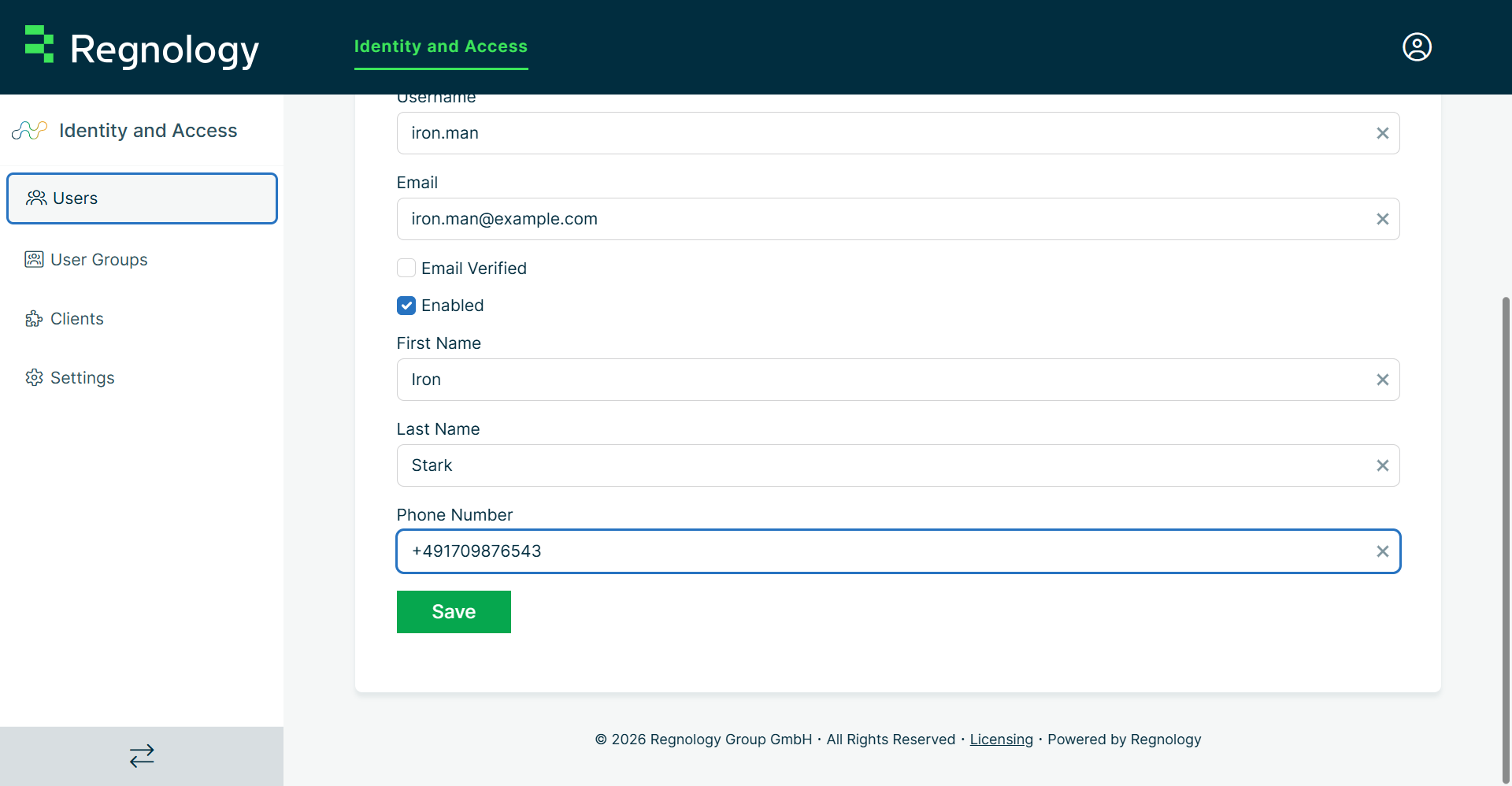
Figure 25. Last Name and Phone Number updated
-
Click Save.
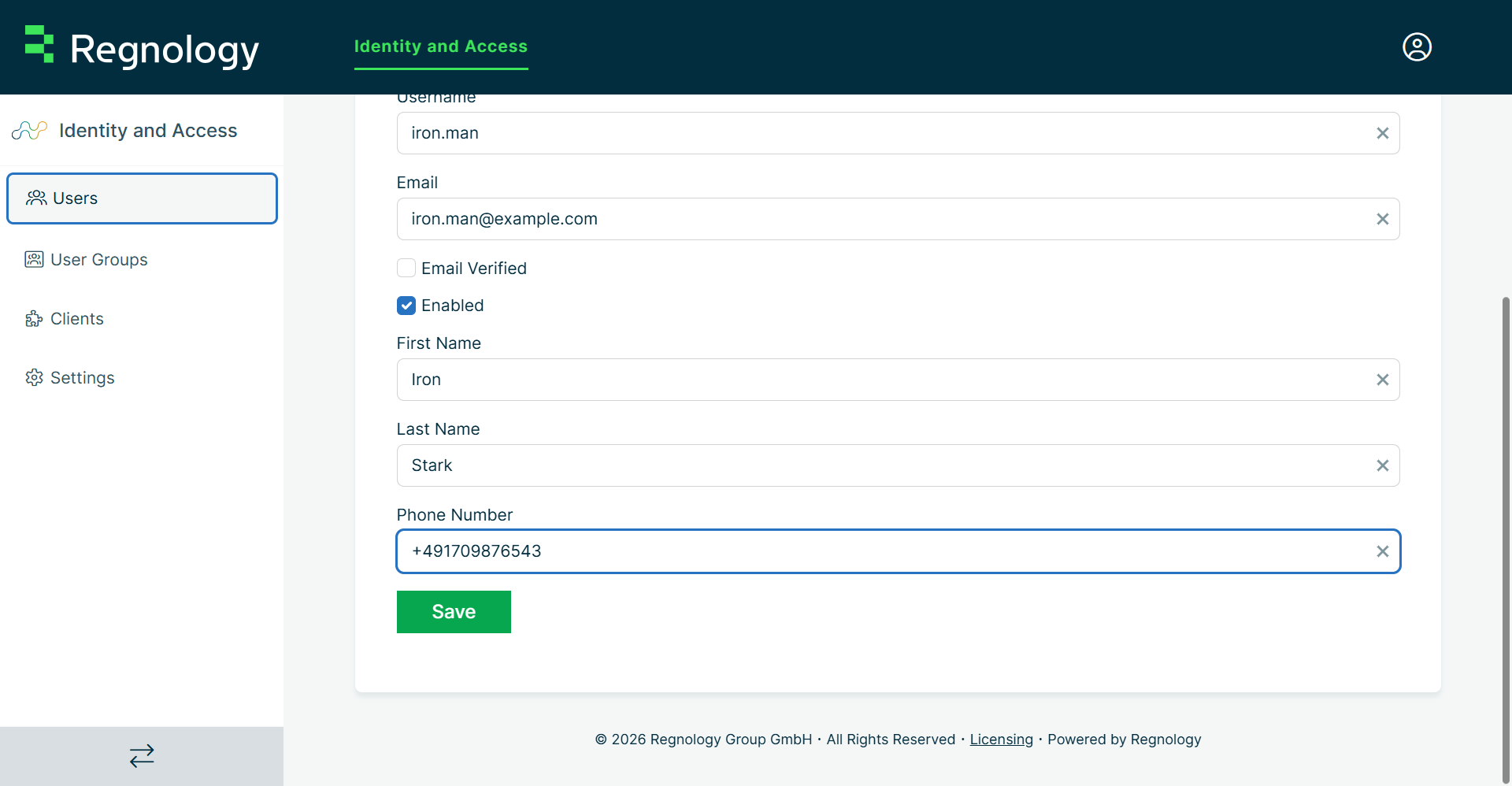
Figure 26. Click Save to apply updates
-
Success message: User “iron.man” was updated
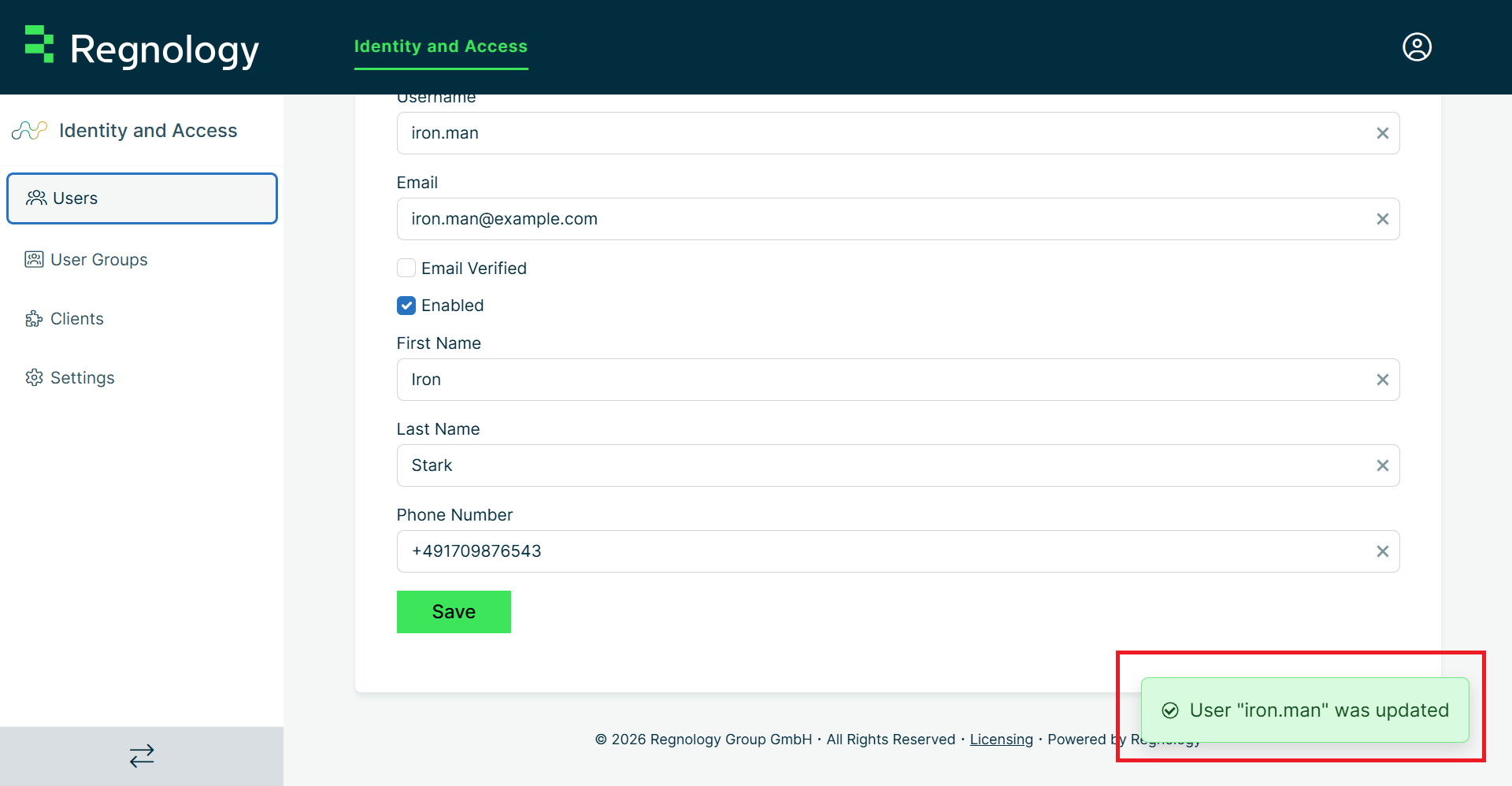
Figure 27. Success message after updating the user
-
Return to Users and confirm the updated values in the User List.
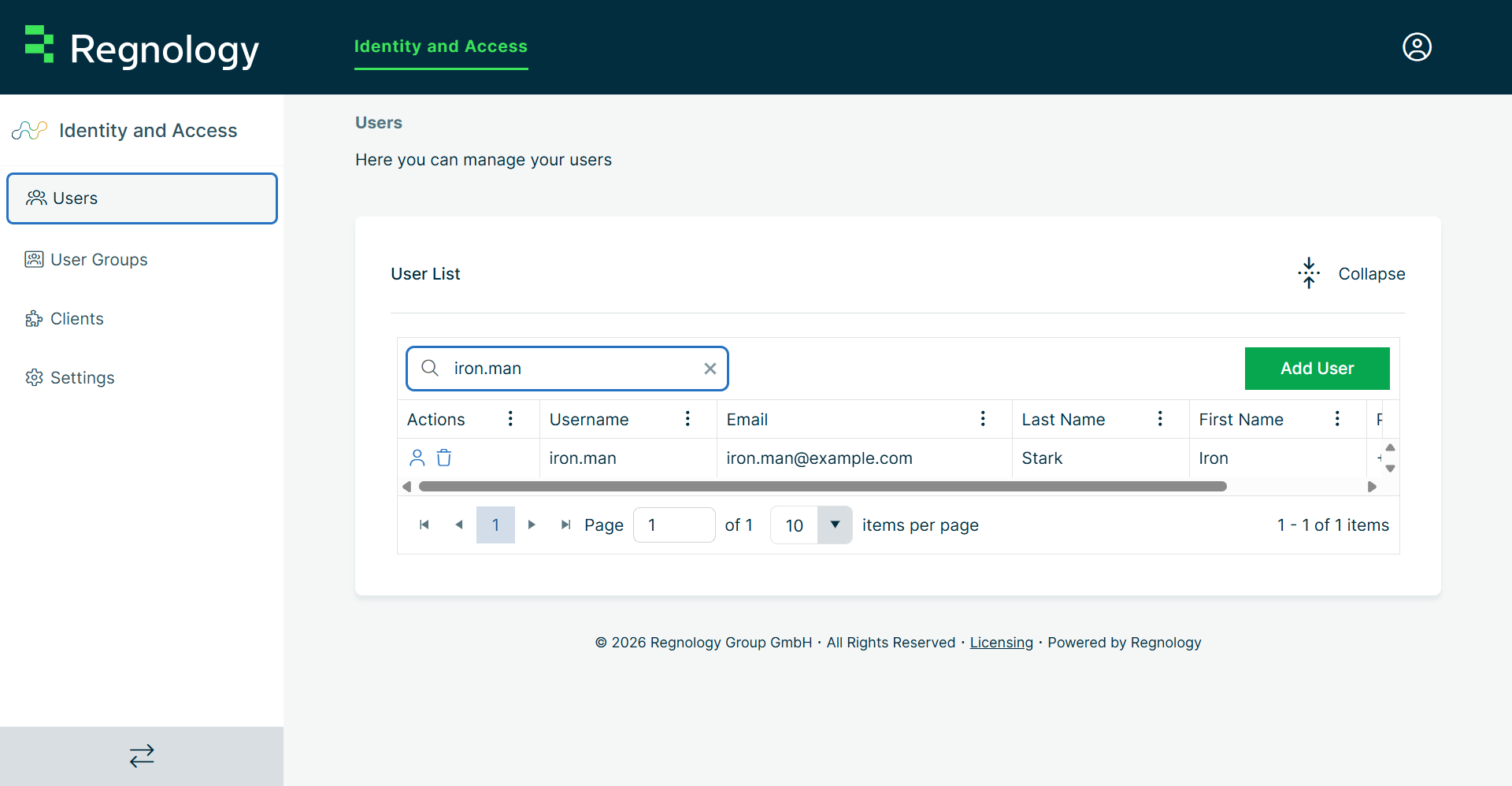
Figure 28. User List after update