Personal access tokens
A personal access token lets a script or command-line tool act as the signed-in user without a browser session. The token is limited to the modules chosen when it is generated. Each user manages only their own tokens.
Open personal access tokens
-
In the top-right corner of the portal, click the profile avatar icon.
-
In the menu, select Personal access tokens.
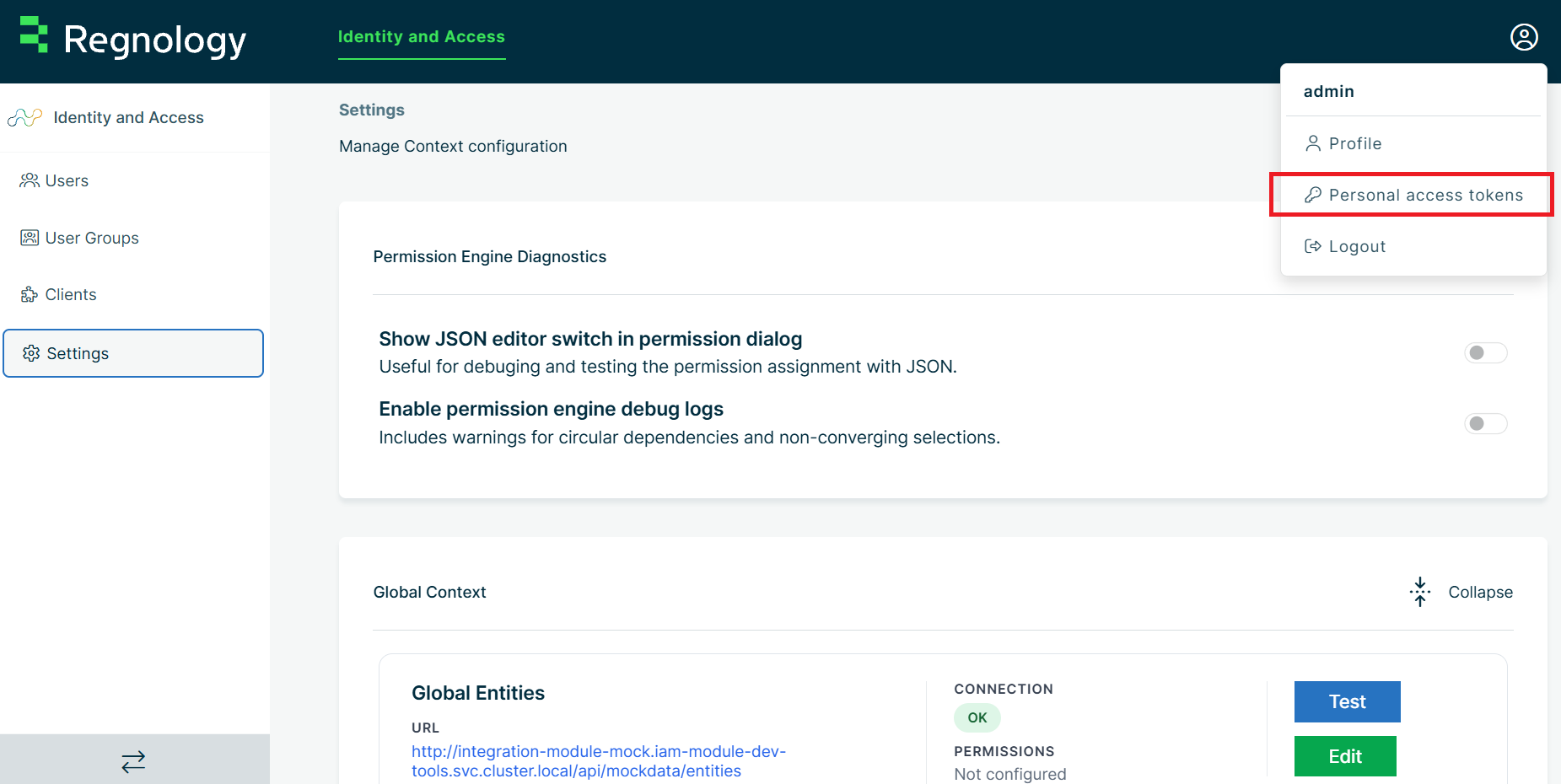
Figure 7. Avatar menu with Personal access tokens
-
The Personal Access Tokens page opens.
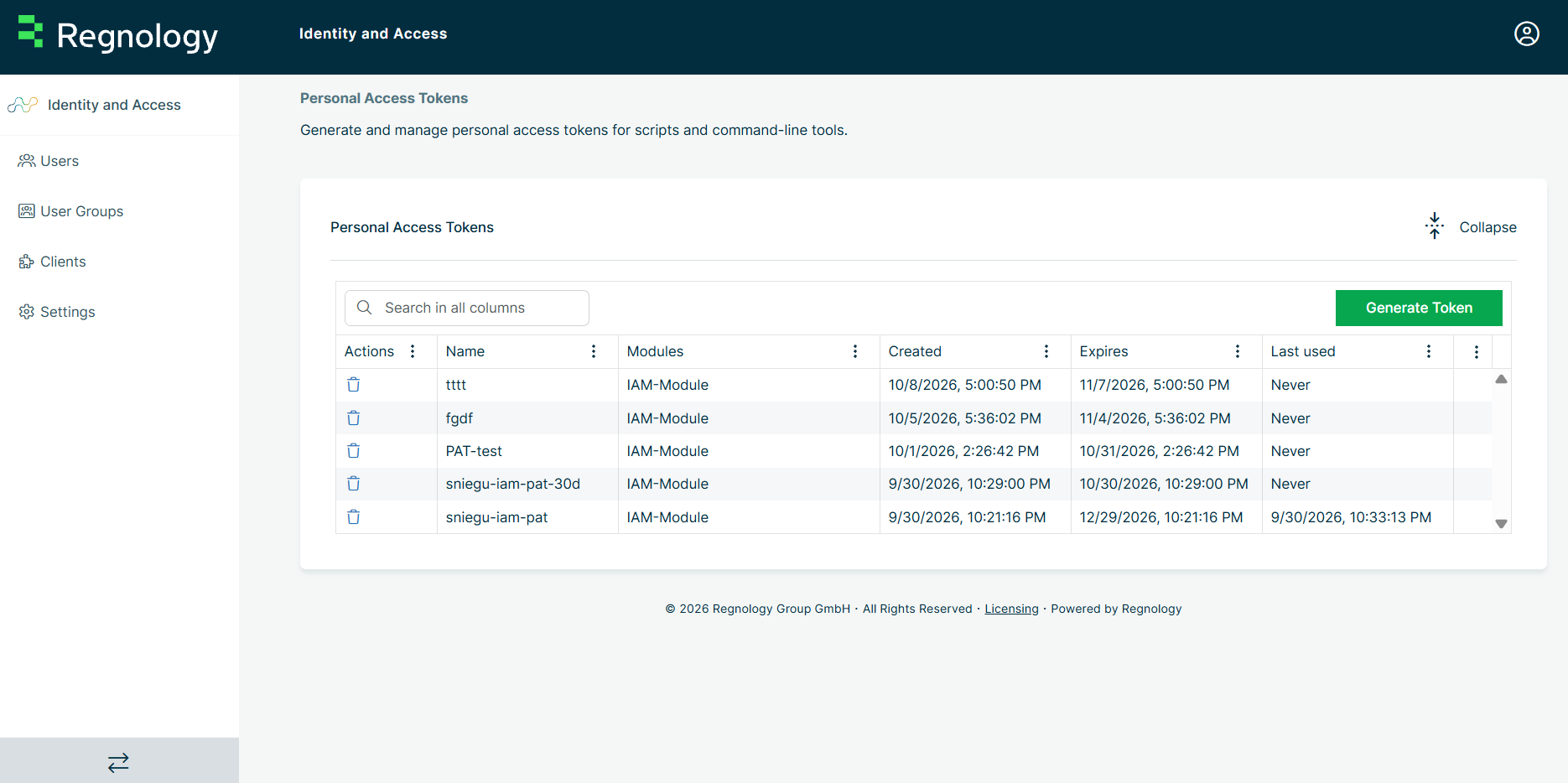
Figure 8. Personal Access Tokens page
Note- The list shows active tokens.
- “Search in all columns” field lets you filter the list.
- Columns available are Actions, Name, Modules, Created, Expires, and Last used.
- Last used is Never until the token has been used.
- Name, modules, and validity cannot be edited after the token is generated.
Generate a token
-
Click Generate Token.
-
The Generate Personal Access Token dialog opens. Name and Modules are empty. Validity is by-default set to 30 days.
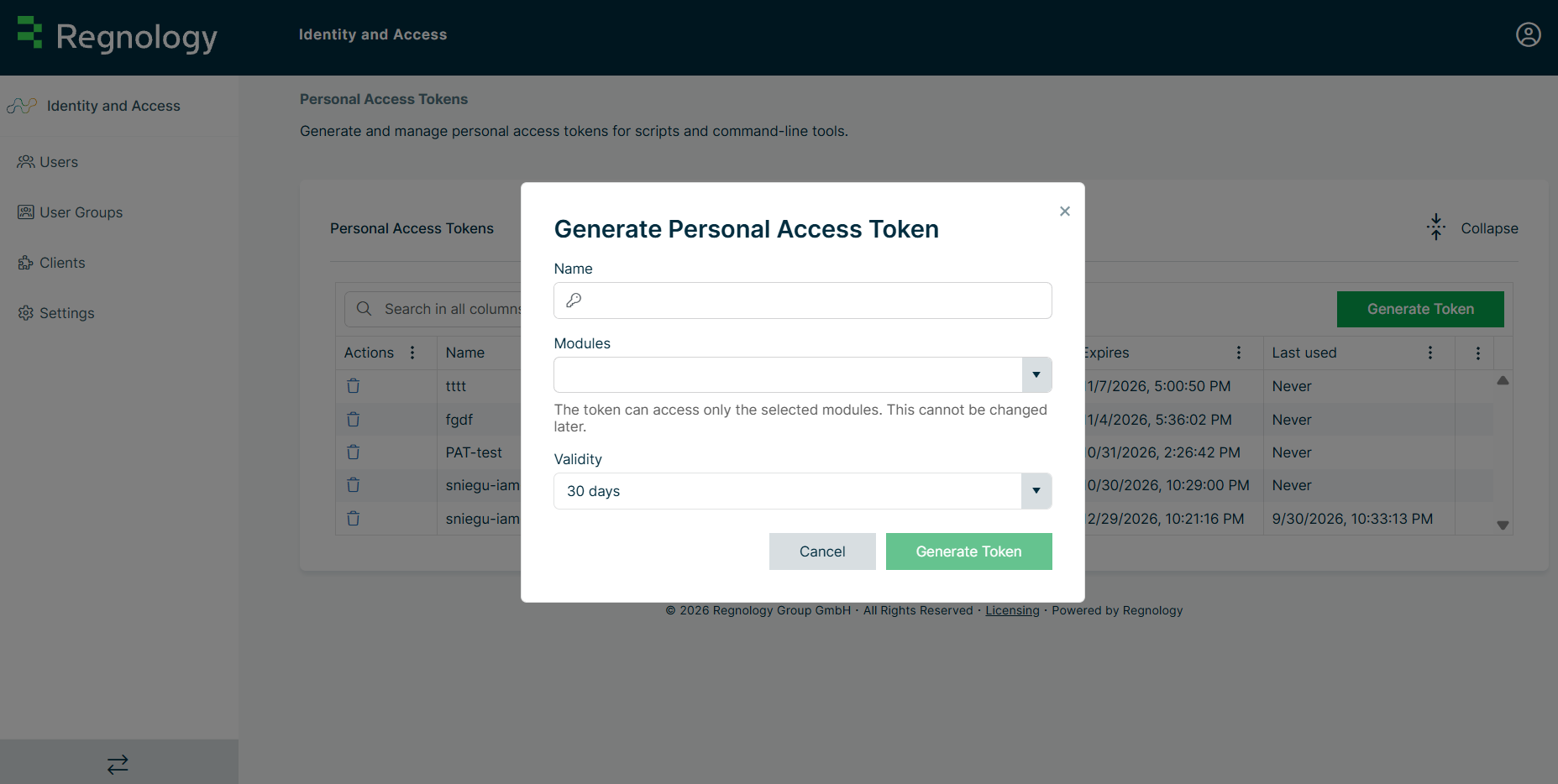
Figure 9. Generate Personal Access Token dialog before Name and Modules are entered
-
Enter a Name (required, up to 255 characters).
-
Select one or more Modules.
- Only modules that the signed-in user can access are listed in the dropdown. The form shows this hint: “The token can access only the selected modules. This cannot be changed later.”
-
Select a Validity period.
- The choices shown are 30 days, 90 days, and 365 days.
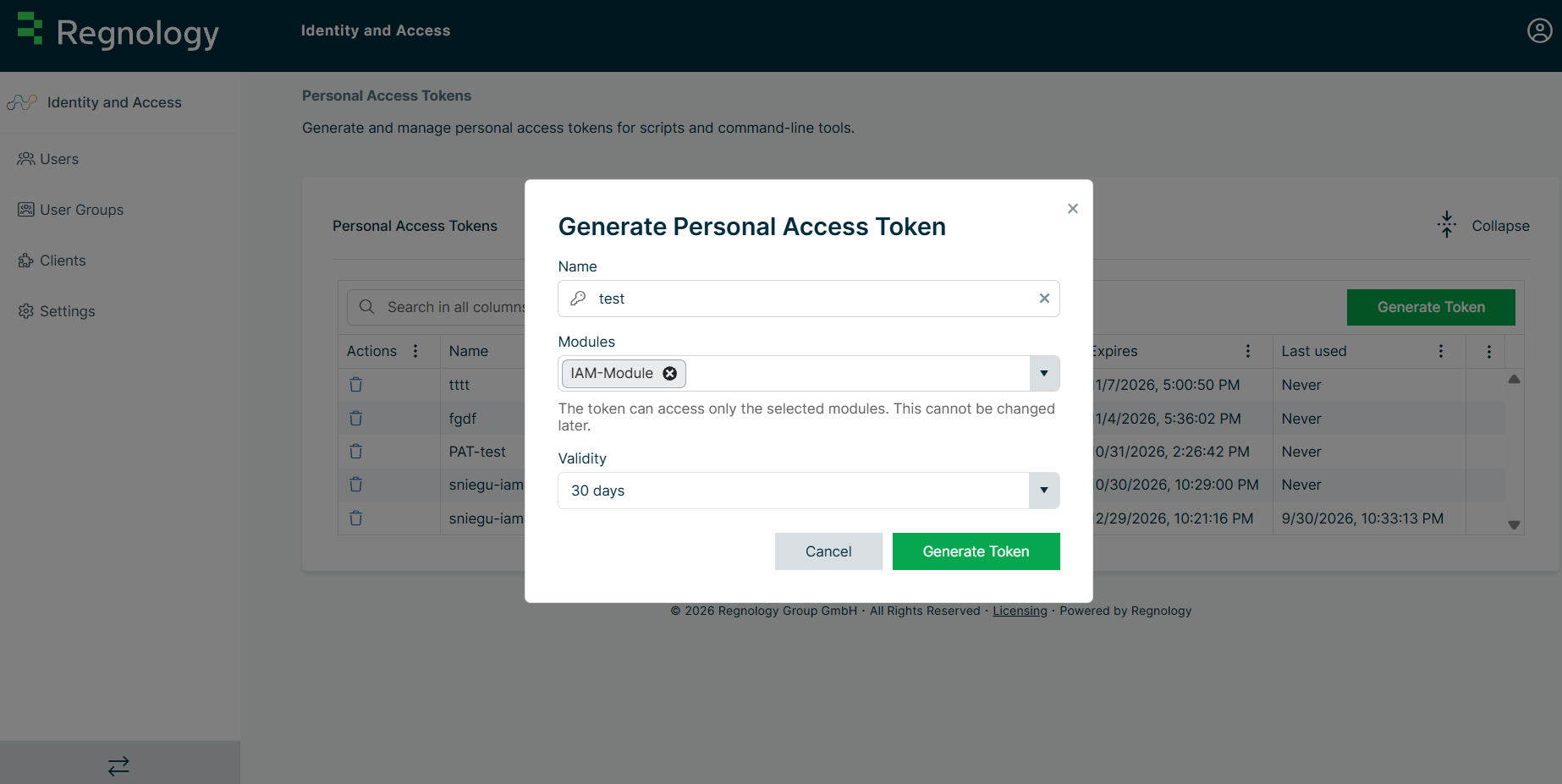
Figure 10. Generate Personal Access Token dialog ready to generate
-
Click Generate Token.
- When no modules are available, Generate Token stays disabled and the page shows: “No modules are available for a personal access token. Ask an administrator to grant module access.”
WarningImportant
Generation is refused when the active-token limit is reached, or when an active token already uses the same name. The message is: “The active token limit was reached or an active token already uses this name.” A user can have up to 10 active tokens. Revoked and expired tokens do not count toward that limit, and their names can be used again.
Copy the token
- The Personal Access Token Generated dialog opens next.
-
The dialog states: “Copy this token now. For your security it is shown only once and cannot be retrieved again.”
-
The token value is masked. The eye icon reveals the token, and Copy places it on the clipboard. Copy works while the value is still masked. The dialog also shows the token name, expiry, and modules.
-
Click Done to close the dialog. The token cannot be displayed again. If it was not copied, revoke that token and generate a new one.
-
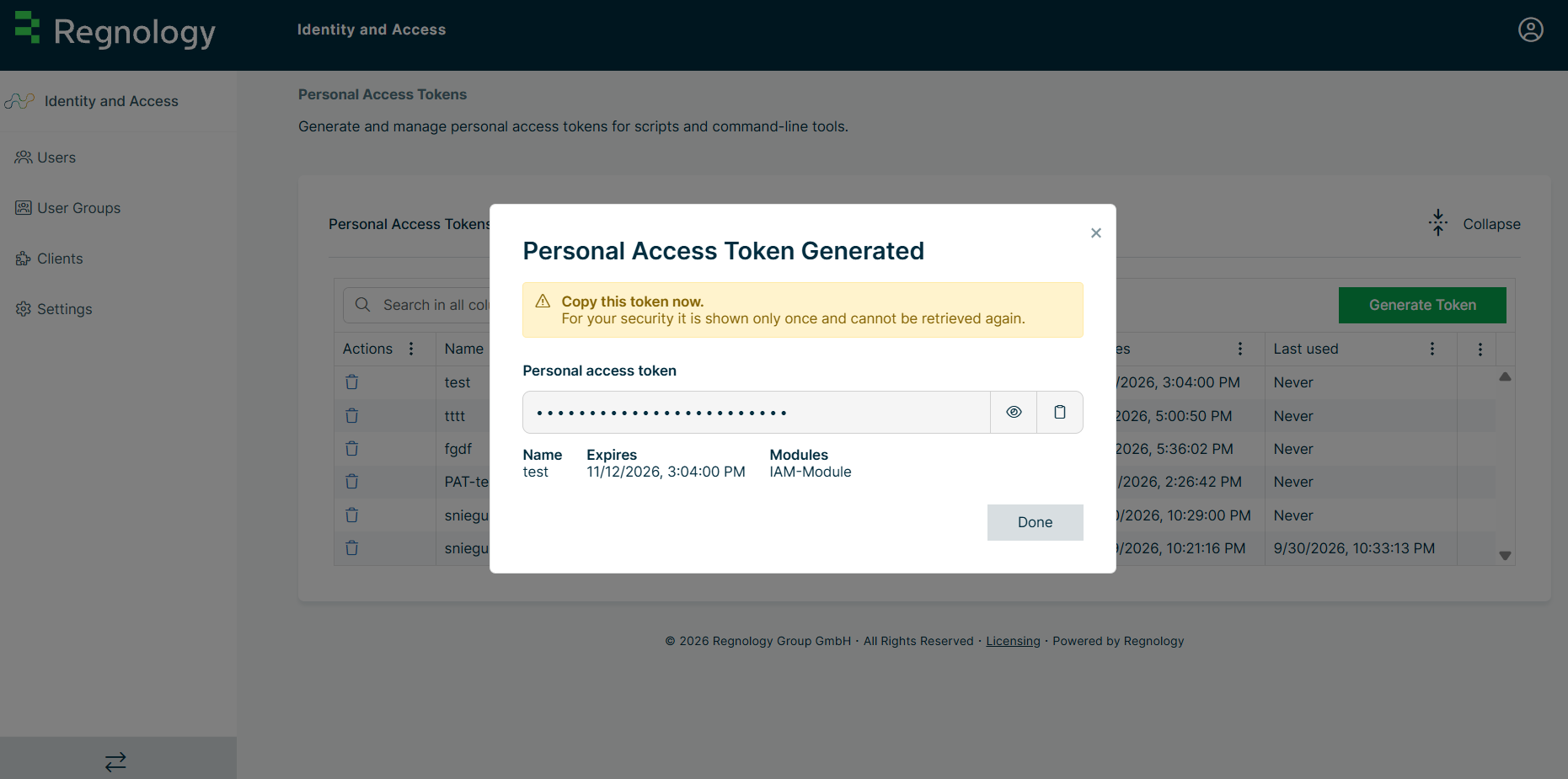
Figure 11. Personal access token shown once
Important
Granting access to another module later does not add that module to an existing token. If access to a selected module is removed, the token can no longer be used for that module. Generate a new token when the module list needs to change.
Exchange the token for an access token
To call platform APIs with a personal access token, first exchange it at the identity provider (Keycloak) for a short-lived access token, and send that access token as a bearer token in the Authorization header. The exchange needs no client credentials and no browser session; the personal access token authenticates the request.
The exchange request is sent to the following endpoint:
POST https://<keycloak-host>/realms/<realm>/custom-permissions/personal-access-tokens/exchange
Content-Type: application/json
<keycloak-host> is the host name of the identity provider of the environment and <realm> is the realm that the portal signs in to. Both are visible in the browser address bar on the sign-in page of the portal.
The request body is a JSON object with the following fields:
| Field | Type | Required | Description |
|---|---|---|---|
pat | string | Yes | The personal access token, starting with reg_pat_. |
scopes | string[] | Yes | The scopes to request, as a JSON array (not a space-separated string). At least one entry must be a module scope in the form module.<module>, where <module> is a module name shown in the Modules column of the token. The module name must match exactly, including case. |
- Only modules that were selected when the token was generated can be requested, and only while the user still has access to them. Requesting fewer modules than the token allows is permitted.
- Scopes other than module scopes are accepted only when an administrator has made them available for personal access tokens. Scopes that carry custom permissions,
openid, andoffline_accessare never accepted. - The exchange returns no refresh token. When the access token expires, exchange the personal access token again.
Example
Important
Treat the personal access token and the access token like passwords. Do not write them into scripts, to logs, or to source control, and do not pass them as command-line arguments, which other users of the same system can see in the process list. Read the personal access token from a secret store or an environment variable instead.
The following example exchanges a personal access token for an access token with curl and jq, and then calls an API with that access token. It reads the personal access token from the exported PERSONAL_ACCESS_TOKEN environment variable, for example a secret variable of a CI/CD pipeline, and passes both tokens to curl on standard input. A shell variable that is set but not exported is not visible to jq, and the exchange then fails with invalid_request. The script stops at the first failed command, so a failed exchange does not lead to an API call. The example requires curl 7.82 or later. Replace the placeholders with the values of the environment.
set -euo pipefail

ACCESS_TOKEN=$(jq -n '{pat: env.PERSONAL_ACCESS_TOKEN, scopes: ["module.<module>"]}' \
  | curl --silent --show-error --fail-with-body --json @- \
      "https://<keycloak-host>/realms/<realm>/custom-permissions/personal-access-tokens/exchange" \
  | jq -er '.access_token')

printf 'Authorization: Bearer %s\n' "${ACCESS_TOKEN}" \
  | curl --silent --show-error --fail-with-body --header @- "https://<module-api-url>"
A successful exchange returns HTTP status 200 and a JSON response such as:
{
  "access_token": "eyJhbGciOiJSUzI1NiIsInR5cCIgOiAiSldUIiwia2lkIiA6...",
  "token_type": "Bearer",
  "expires_in": 300,
  "scope": "module.<module> profile email"
}access_tokenis the token to send in theAuthorization: Bearerheader.expires_inis the lifetime of the access token in seconds.scopelists the scopes granted to the access token.profileandemailare added by default, so the access token carries the username, name, and email of the user.
A rejected request returns HTTP status 400 and a JSON response with error and error_description. Other status codes indicate a problem on the server side; contact an administrator.
error | Cause |
|---|---|
invalid_request | pat or scopes is missing or empty. |
invalid_grant | The personal access token is unknown, expired, or revoked, or the user account is disabled. |
invalid_scope | No module scope was requested, a requested module was not selected for the token or is no longer accessible to the user, or another requested scope is not allowed. |
Revoke a token
-
In the Actions column for that token, click Revoke token (trash icon).
-
Confirm in the dialog box that the message names the token that you want to revoke.
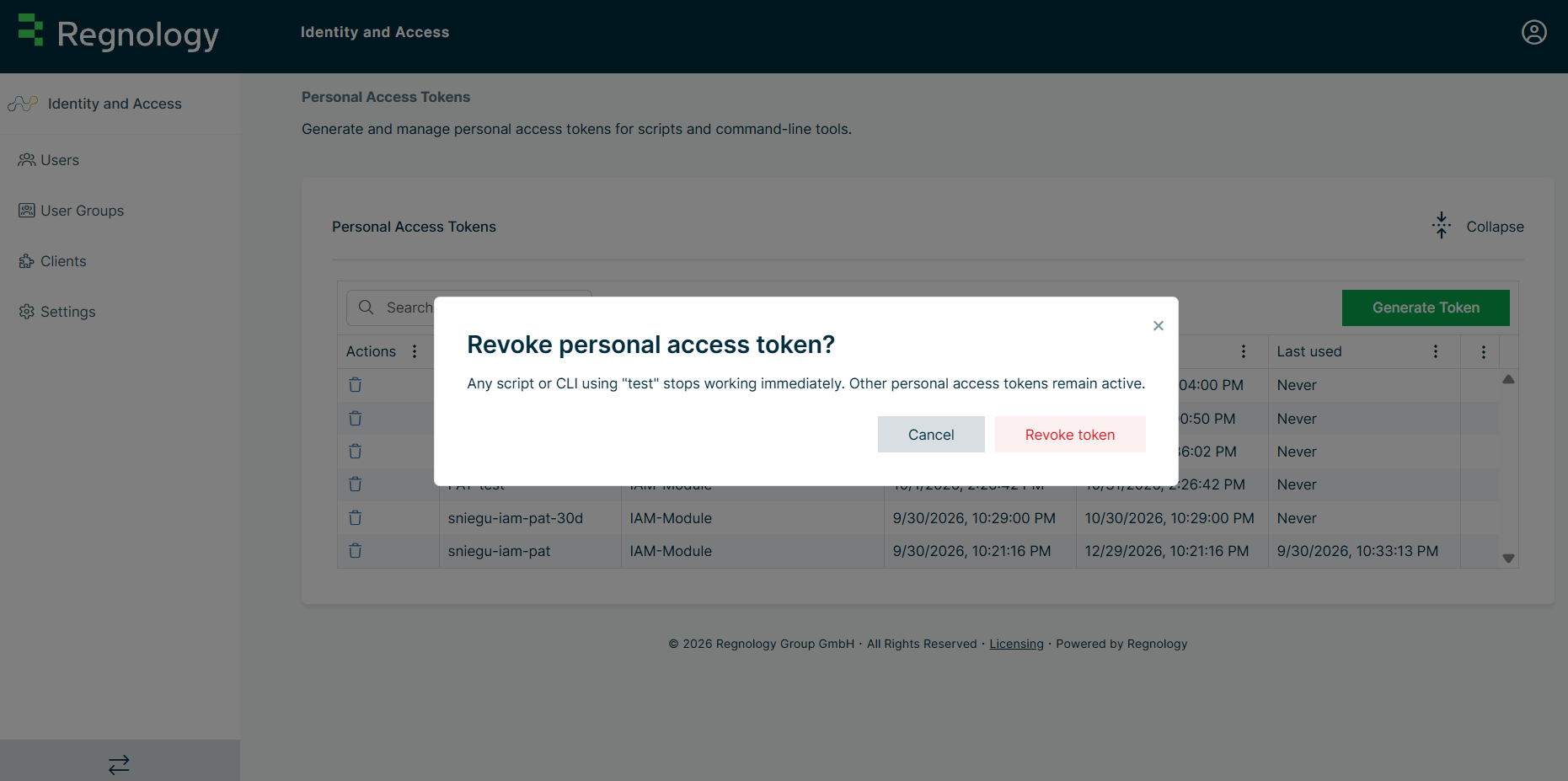
Figure 12. Revoke personal access token confirmation
-
Click Revoke token.
- The token is removed from the list. It cannot be used to sign in again. A script that already signed in with it can continue only until that sign-in expires. Other tokens for the same user would stay active as per their validity duration.