Join or leave a user group
This section explains how to add a user to / remove a user from a group.
-
In the User list, find the user you want to add to a group (use Search bar if needed), or use pagination at the bottom of the list.
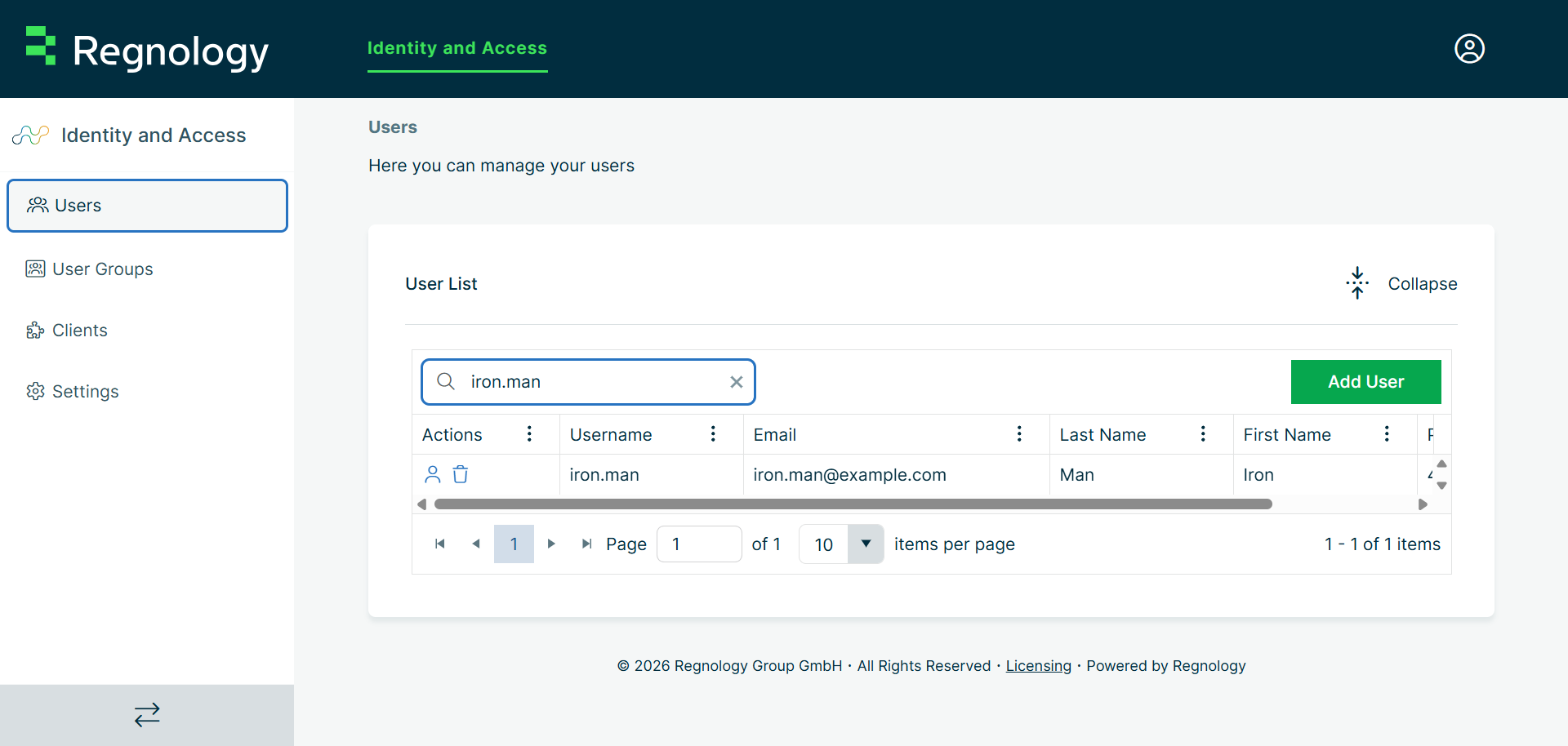
Figure 33. User List showing iron.man
-
In the Actions column for that user, click the User Details icon. Do not click the Delete (trash) icon.
-
The user Details screen opens.
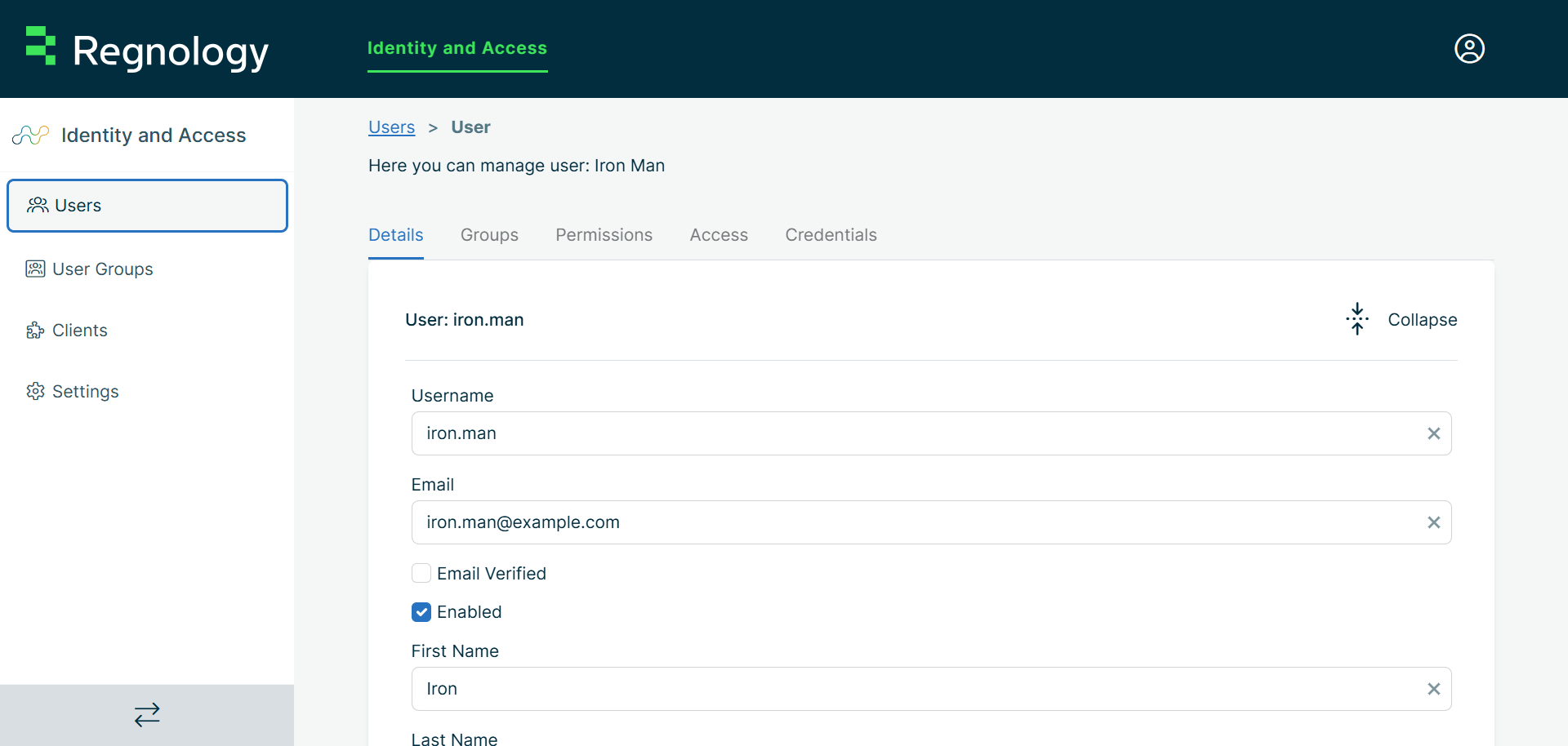
Figure 34. User Details for Iron Man
Open the Groups tab
-
On the user screen, open Groups tab (next to Details). You should see the Join Group button.
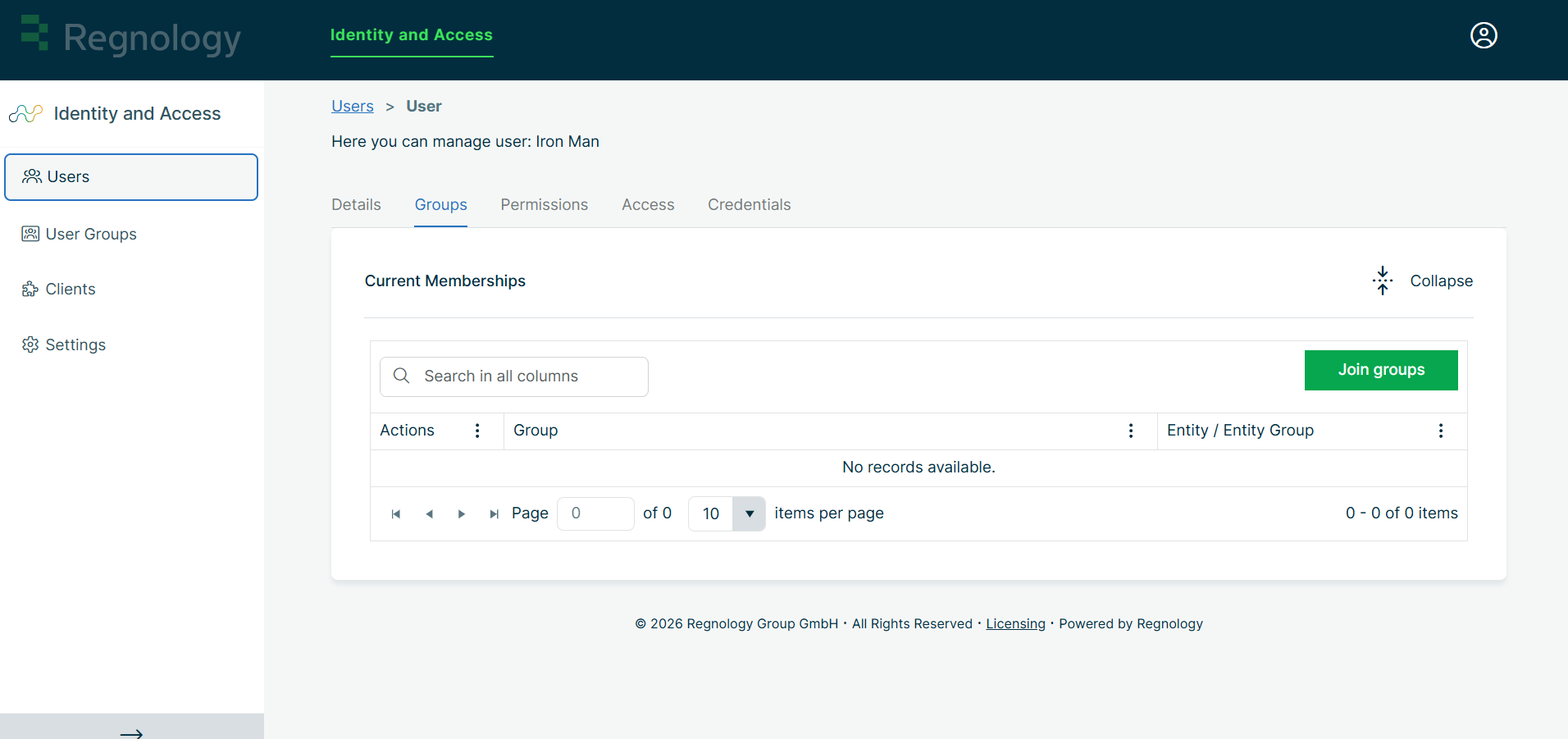
Figure 35. Groups page before joining a group
Join a group
-
Click Join Group. A Join Groups dialog box appears as below screenshot.
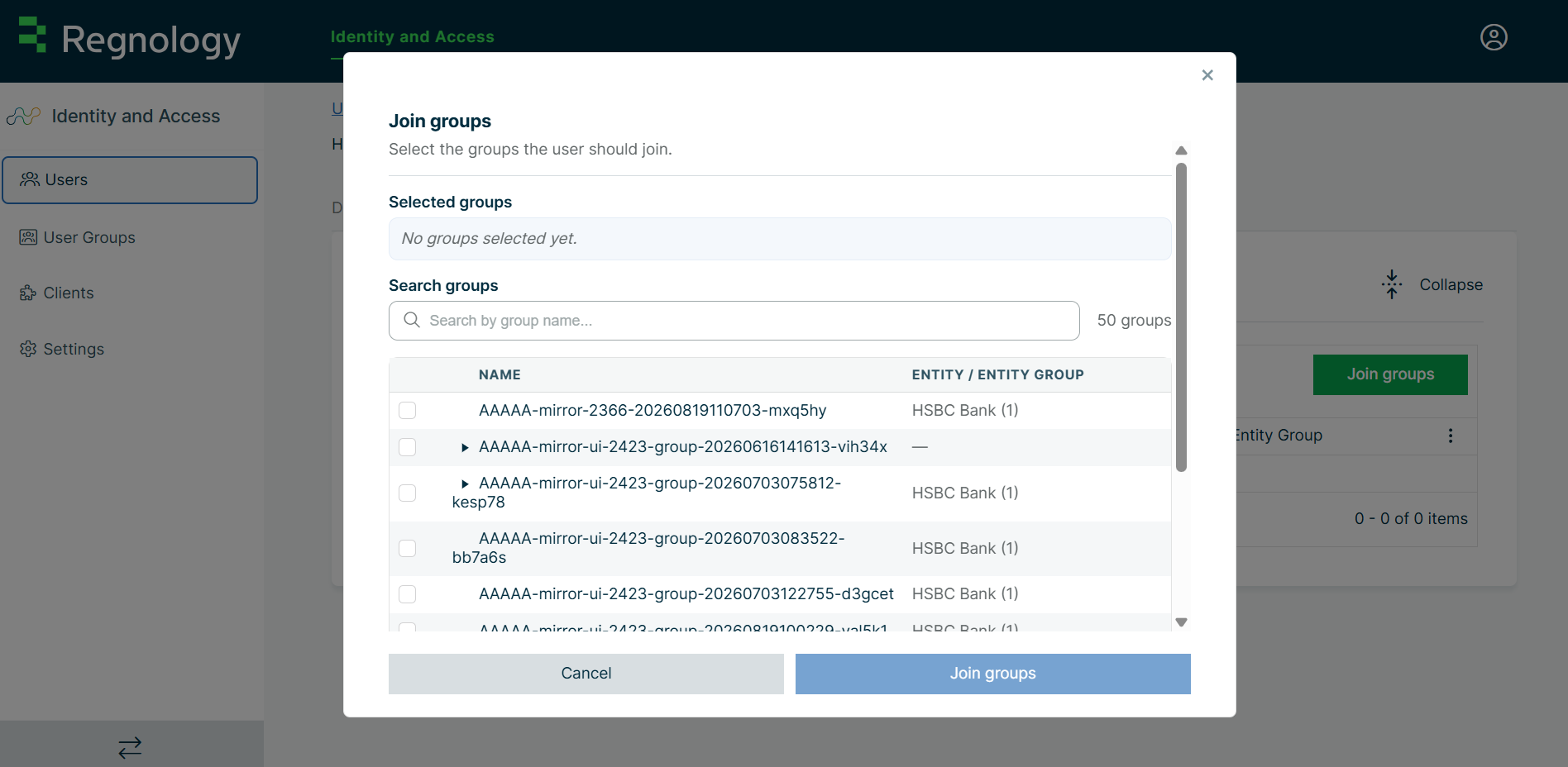
Figure 36. Join Group dialog
-
Select the group named Avengers.
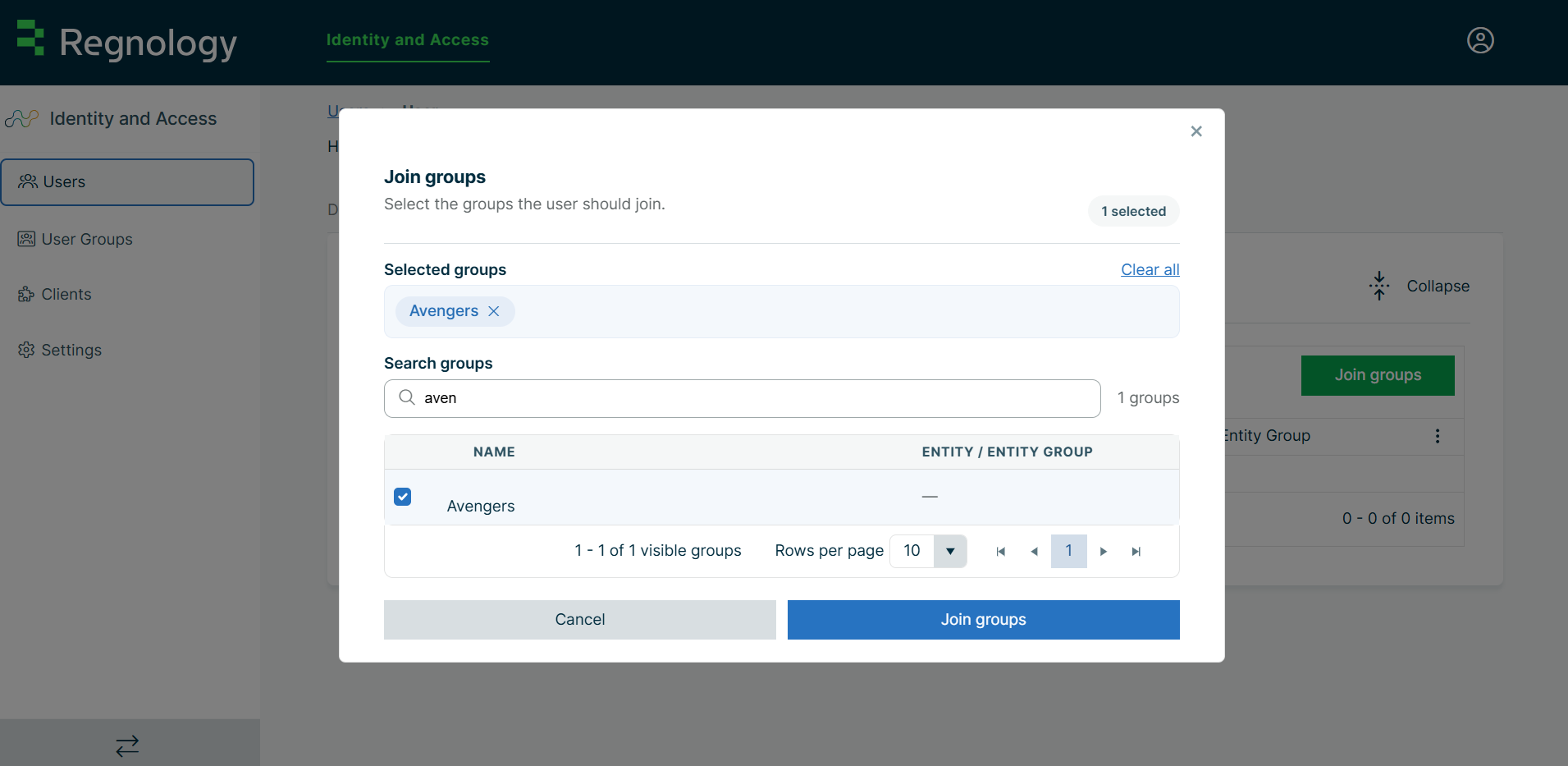
Figure 37. Avengers group selected
-
Click Join.
-
Success message: Joined 1 Group(s)
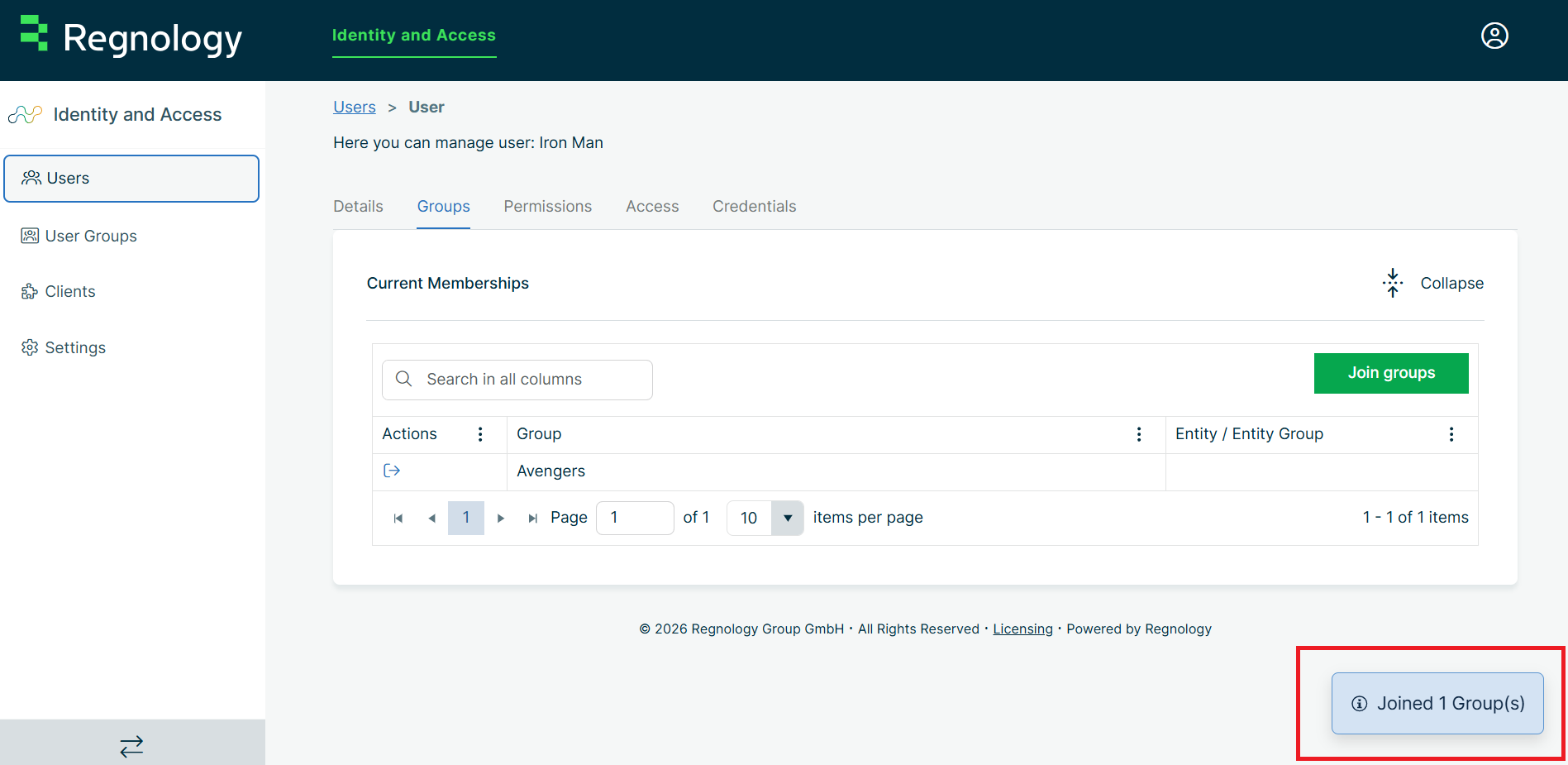
Figure 38. Groups list after joining Avengers
-
Confirm Avengers appears in the Groups list with a Leave action.
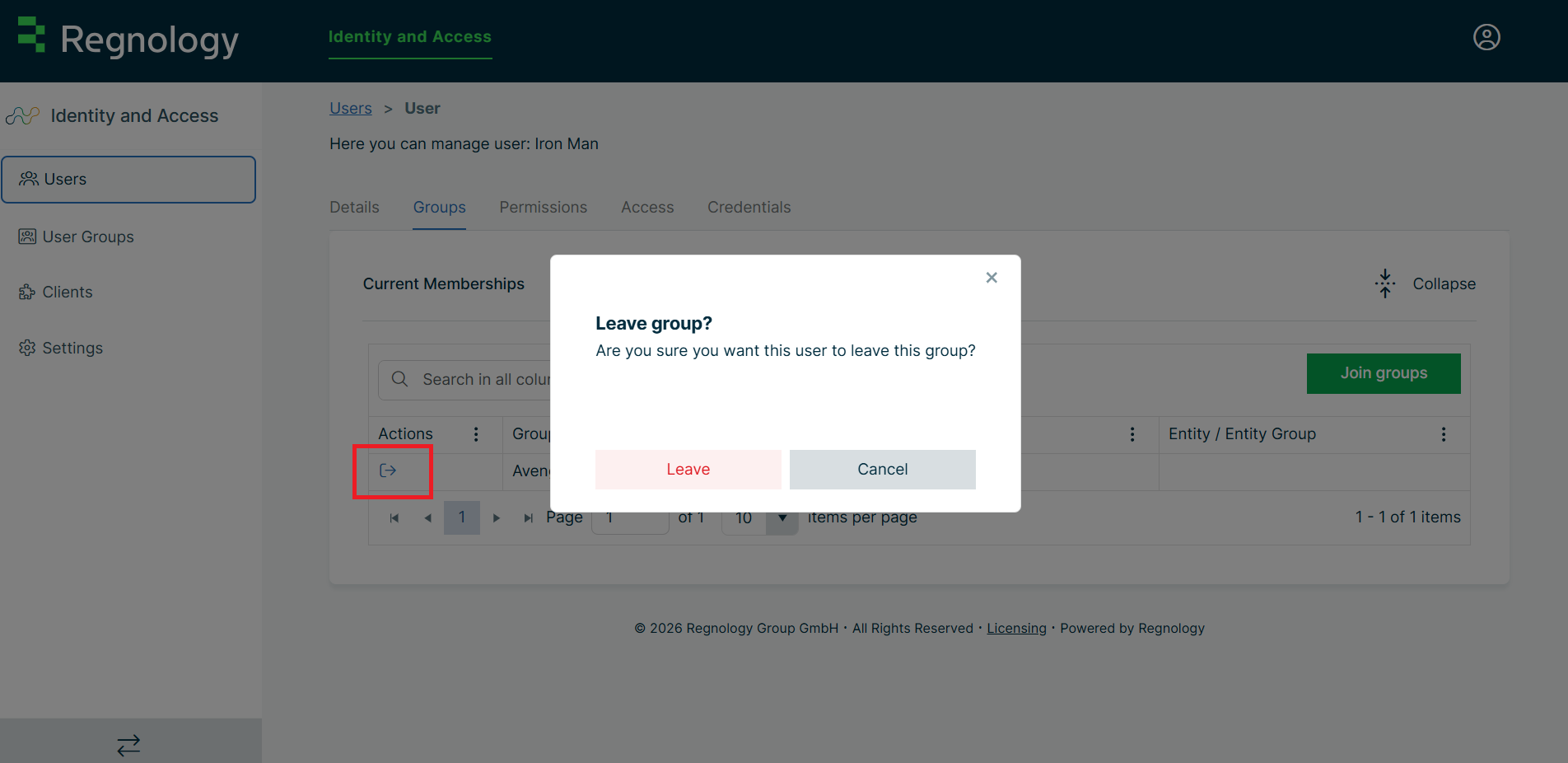
Figure 39. Avengers membership with Leave action
Leave a group
-
In the Groups list, find the Avengers row and click Leave icon in the Action column of that row. Make sure you select the correct group.
-
A confirmation dialog appears.
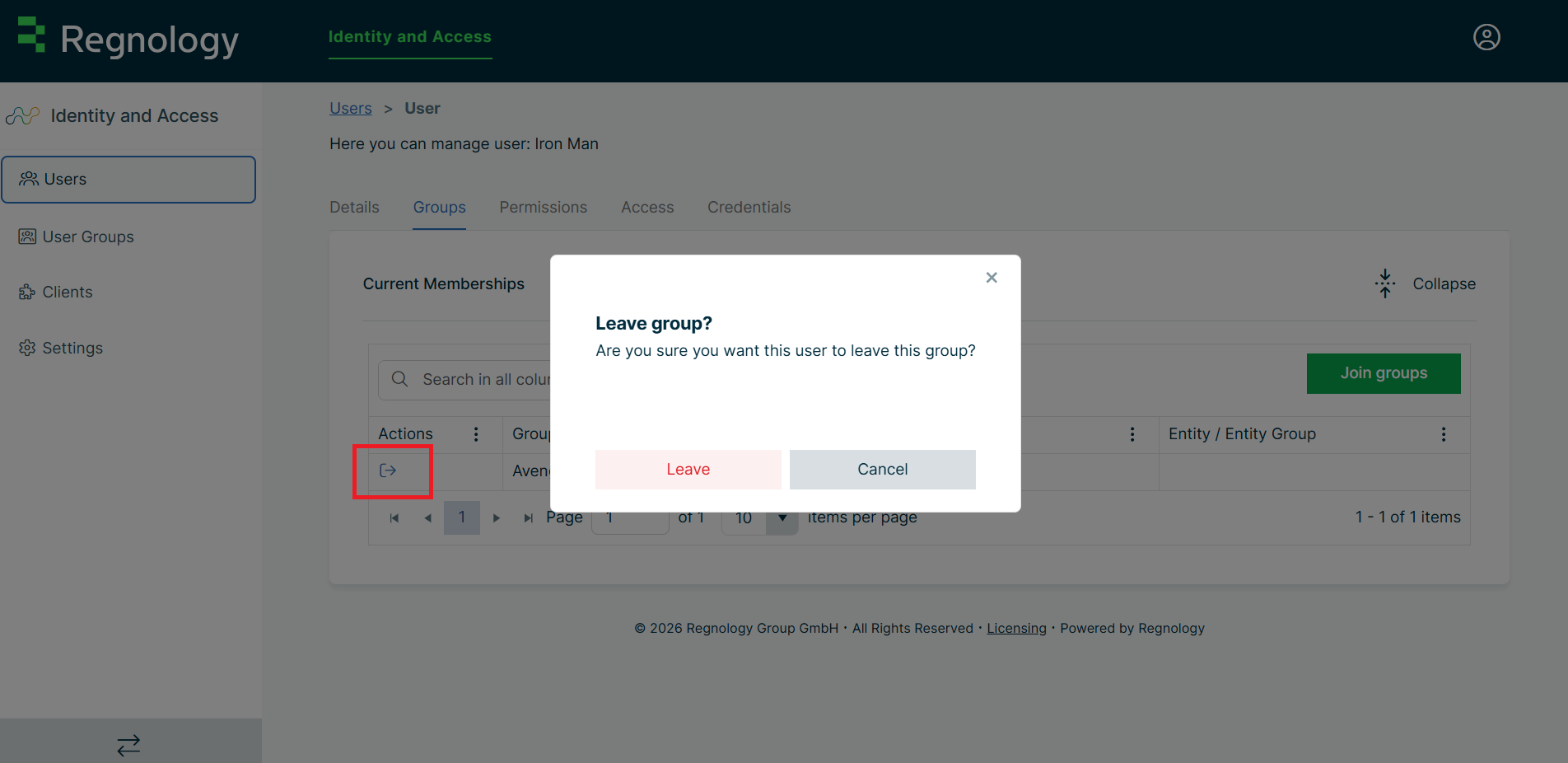
Figure 40. Leave group confirmation dialog
-
Click Leave in the confirmation dialog.
-
Success message: Left Group “Avengers”
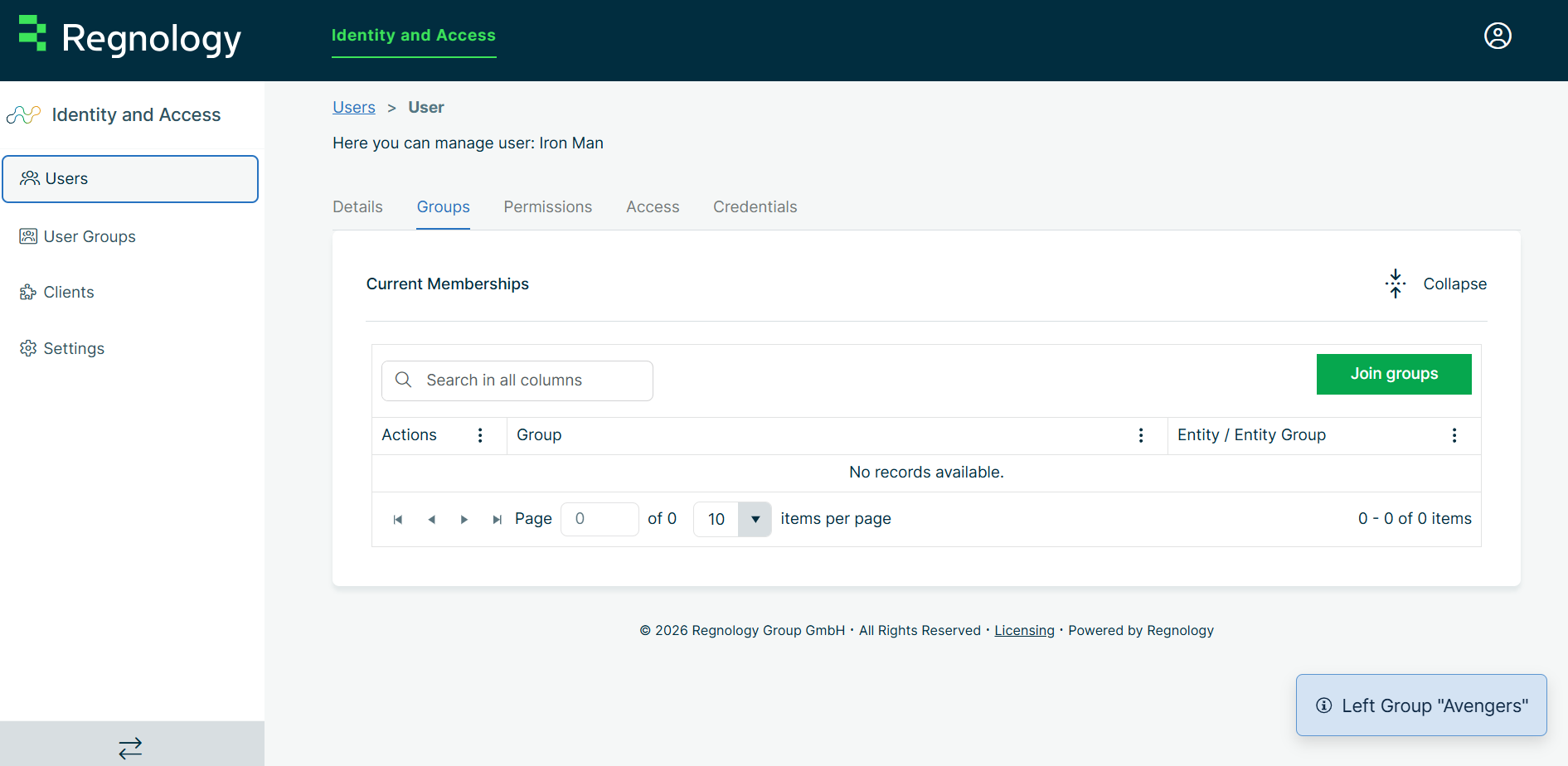
Figure 41. Groups list after leaving Avengers