Add mirrored permission
This section explains permission mirroring for a user. When you add a source permission (for example on IAM-Module), the system can create one or more mirrored permissions on other modules based on permission mirroring configurations in the backend. Mirrored permissions are read-only in the list. You can change them only by updating the source permission.
Open the user Permissions tab
-
In the left navigation pane, click Users.
-
In the User List, find the user named user (use the Search in all columns box if needed).
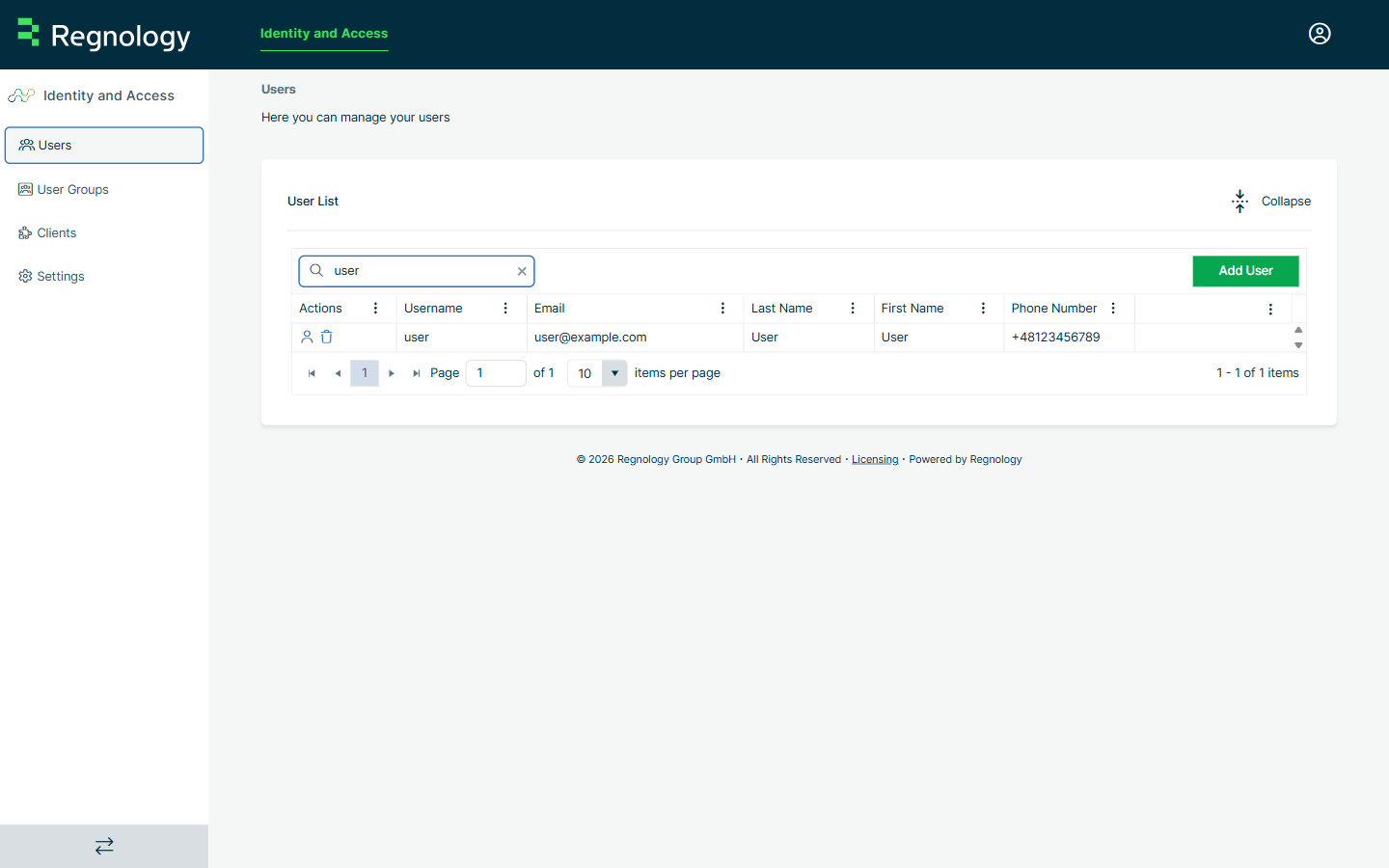
Figure 1. User List showing user
-
In the Actions column for that user, click the User Details icon. Do not click the Delete (trash) icon.
-
The user Details screen opens for User.
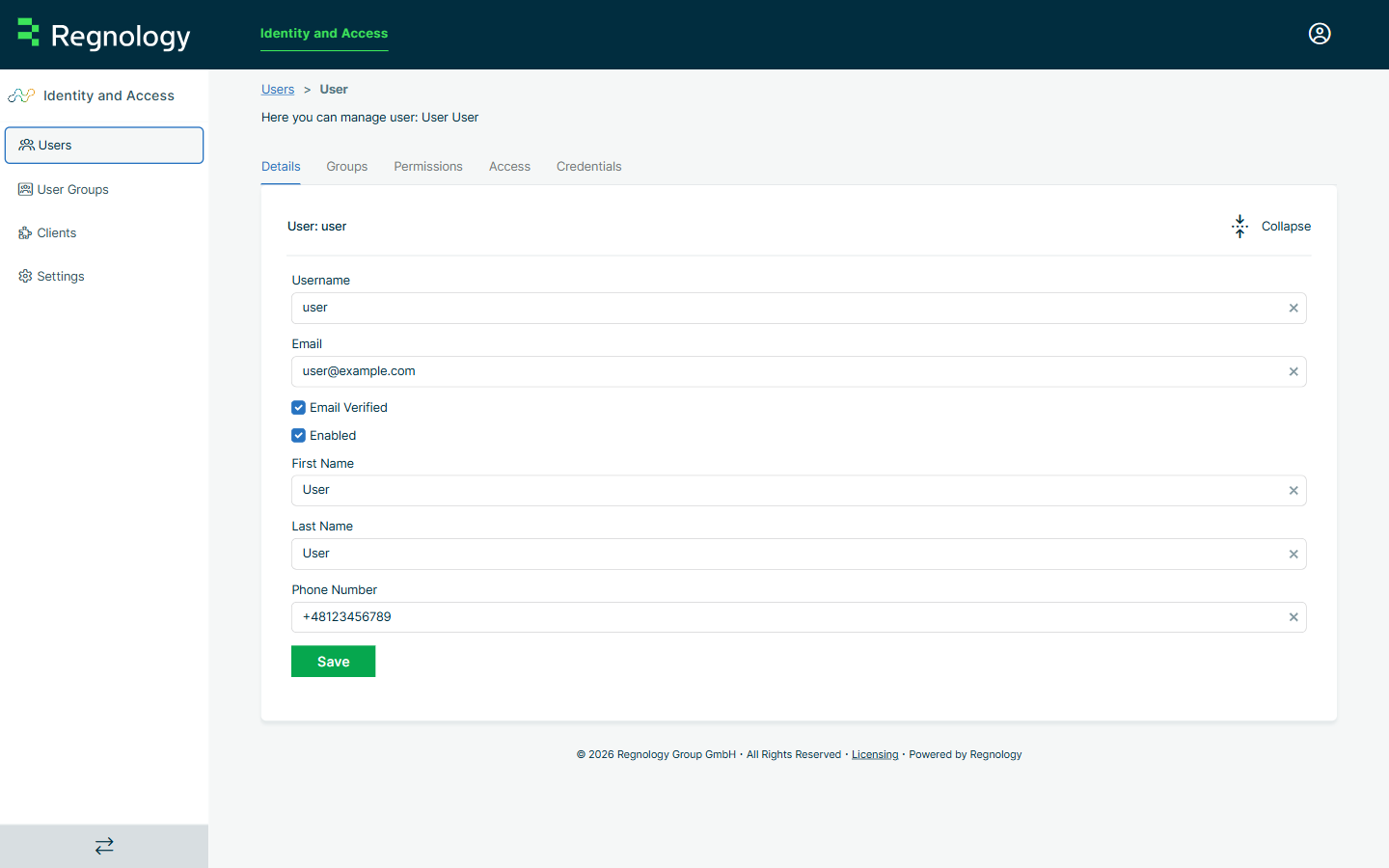
Figure 2. User Details
-
Click on the Permissions tab. You should see the Permissions list for this user and the Add Permission button.
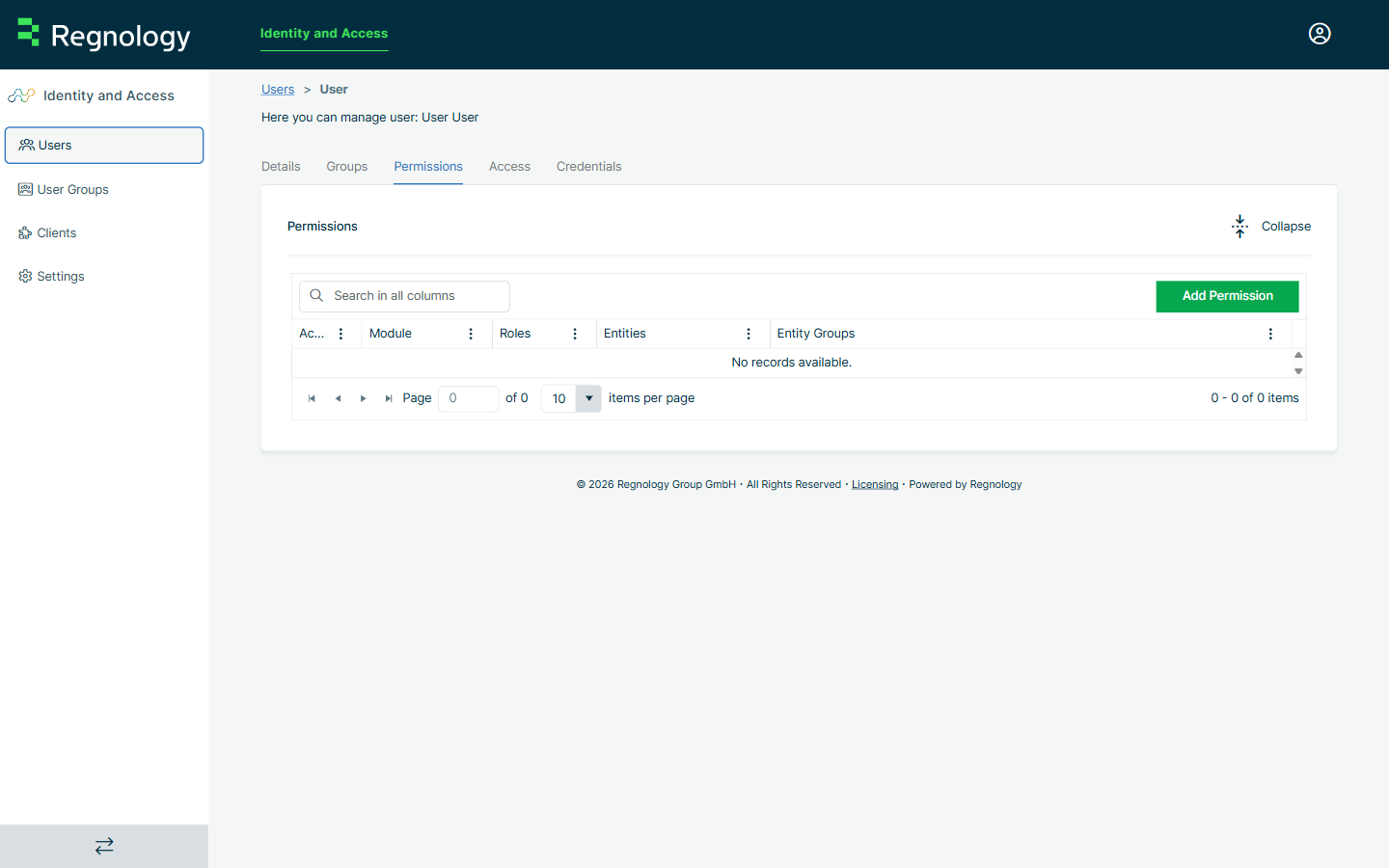
Figure 3. Permissions page before assigning a mirroring source permission
Create the source permission
-
Click Add Permission.
-
Under Module, select IAM-Module.
-
Select Unscoped / Entities / Entity groups. For this example, select Unscoped.
-
Under Roles → Action, select View (view).
-
Under Resource, select Users (users).
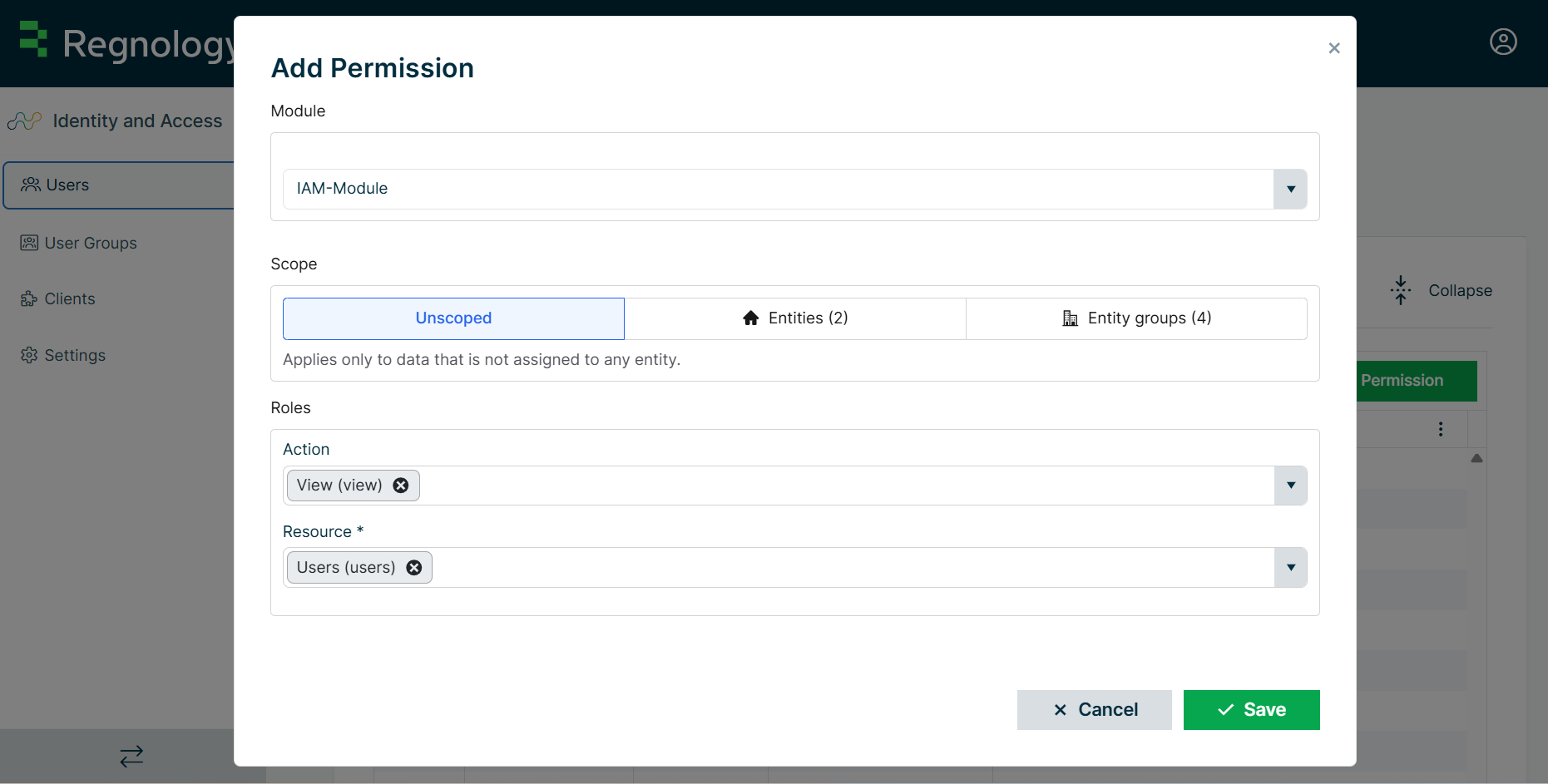
Figure 4. Add Permission form completed (IAM-Module / View / Users)
-
Click Save.
-
Success / attention message.
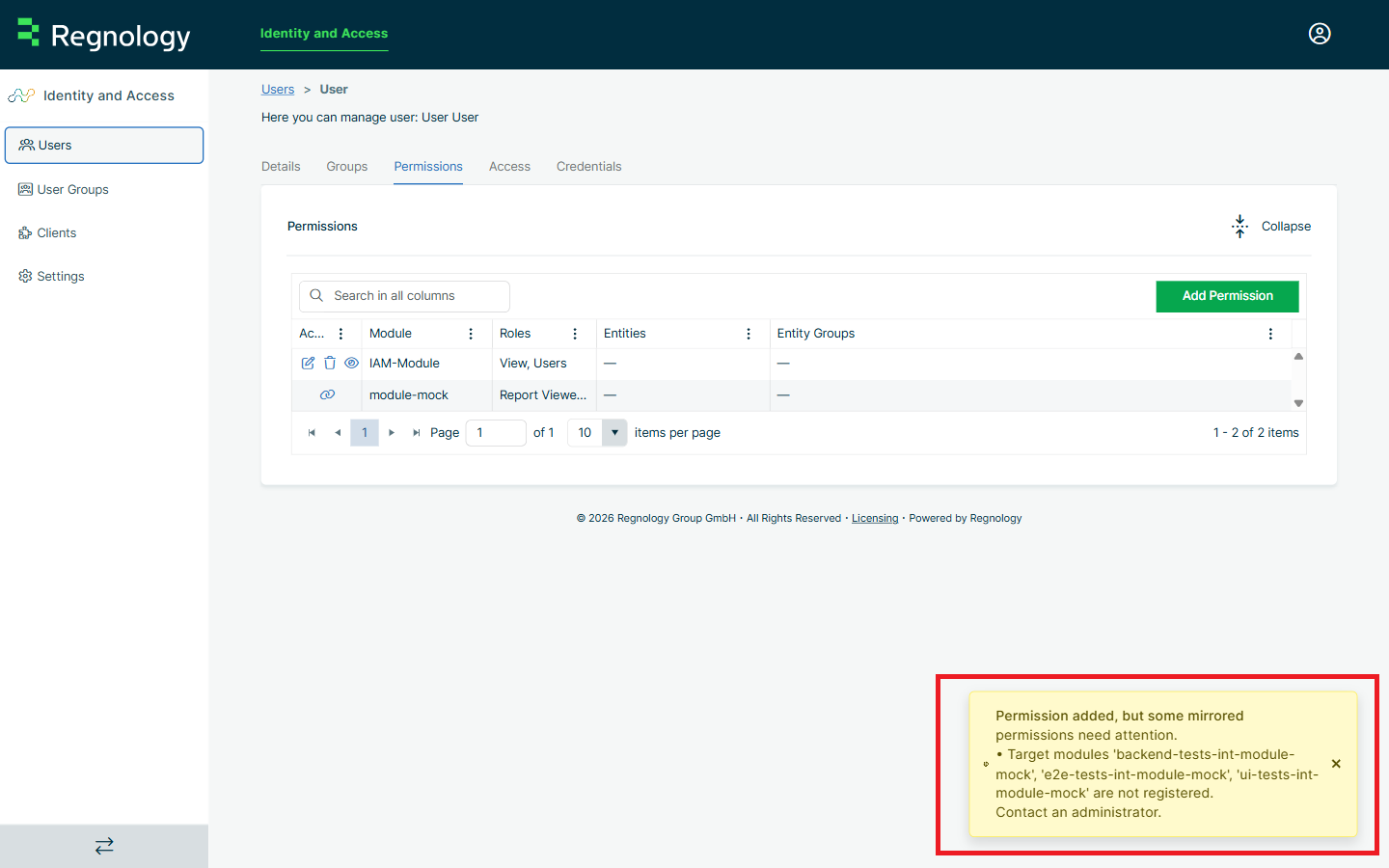
Figure 5. Success / attention message after adding the source permission
-
In the Permissions list, confirm the source permission (Module: IAM-Module, Roles: View, Users). A mirrored permission appears below it (Module: module-mock, Roles: Report Viewer, Banking Supervisor, DC 1).
WarningImportant
Mirrored permissions are read-only. In the Actions column, the mirrored row shows a link icon (tooltip: View source permission) instead of Edit / Delete icons.
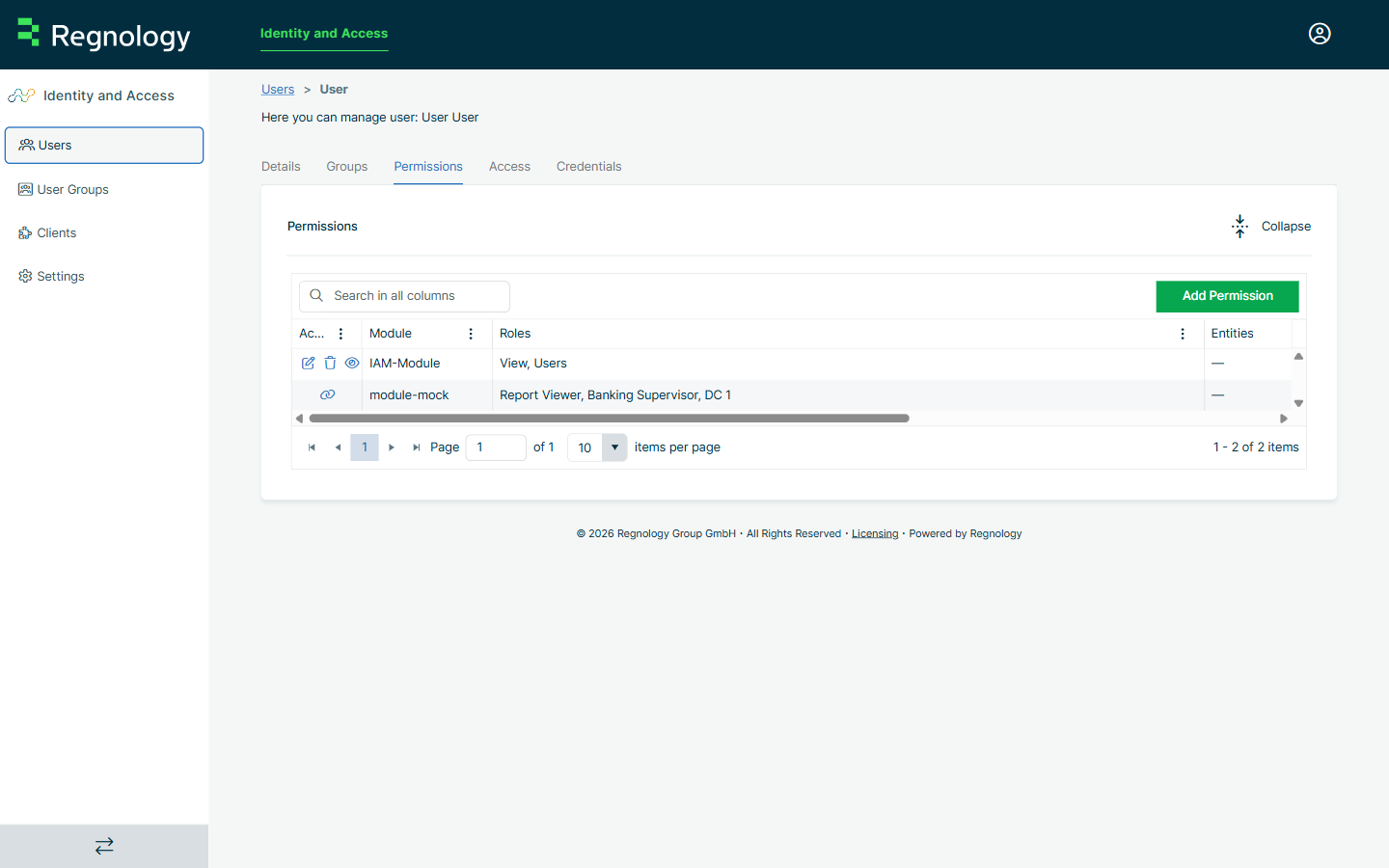
Figure 6. Permissions list with source (IAM-Module) and mirrored (module-mock) permission